1
26 8776 CH20
3/17/00
3:20 PM
Page 301
KIllustrator
301
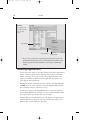
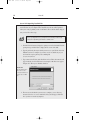
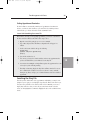
The first time you need to save your work, click the Save Document button. You are presented with the Save As dialog box. Select the directory in which you want to store the
file and type the filename at the end of the directory path in the Location text box. This
saves the file in the KIllustrator native file format (.kil). You will want to keep one of
these .kil files around so that you can use KIllustrator to change the drawings. The .kil
file format preserves any special KIllustrator functions such as layers.
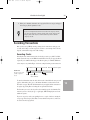
Once your drawing is complete, you can then save it in a variety of formats depending on
your needs. If you plan to use your drawing on the Web, try GIF, JPEG, or PNG image
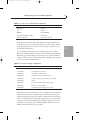
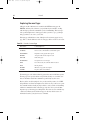
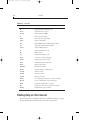
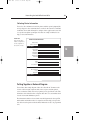
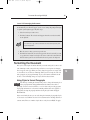
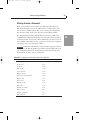
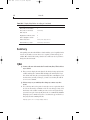
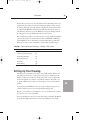
formats. KIllustrator can save image files in several more file formats (see Table 20.1).
When you are ready to convert your drawing to another format, select File, Export.
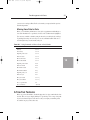
TABLE 20.1
Export KIllustrator Drawings to a Variety of File Formats
Supported Image Formats
File Type
Graphics Interchange Format
.gif
Joint Photographic Experts Group
.jpg
Portable Network Graphics
.png
Encapsulated Postscript
.eps
X11 Pixmap
.xpm
Portable Pixmap
.ppm
Setting Up Your Drawing
Now that you’ve had the quick tour, it’s time to plan your first drawing. Where do you
start? With a pencil and a piece of paper. Before you begin your computer-generated
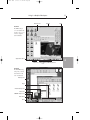
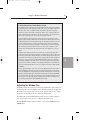
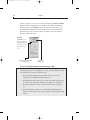
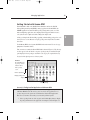
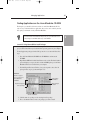
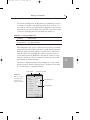
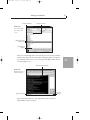
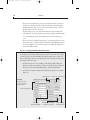
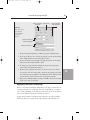
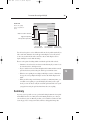
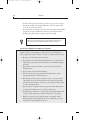
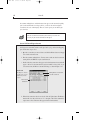
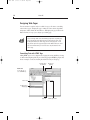
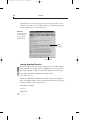
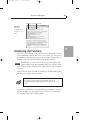
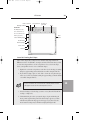
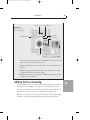
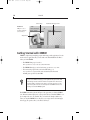
drawing, you may want to make a few sketches and jot down a few notes. Figure 20.3
shows the design phase for a brochure cover. Different elements of the brochure cover
are placed on different layers so that text can be changed to create covers for different
products.
You’ve already seen that KIllustrator does a great job at creating basic images. It also
contains tools that help you lay out your design and keep things in order.
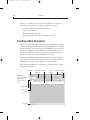
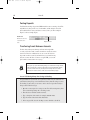
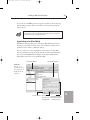
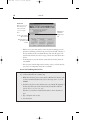
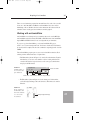
One way to create balance in your drawings is to use a grid. A grid separates your drawing area into a series of rows and columns.
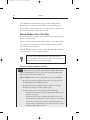
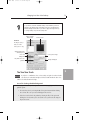
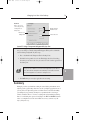
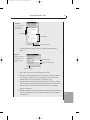
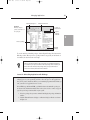
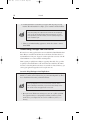
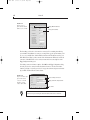
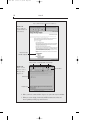
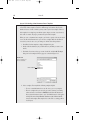
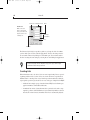
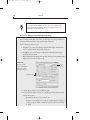
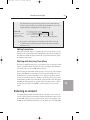
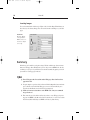
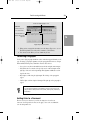
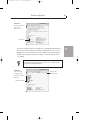
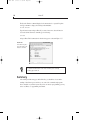
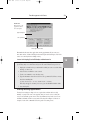
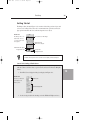
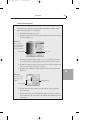
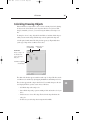
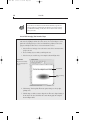
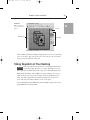
Select Layout, Grid if you want to use a grid to help arrange your drawing. The Grid dialog box shown in Figure 20.4 is where you will set up the dimensions of your grid.
20