1
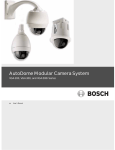
AutoDome Modular Camera System
6.4.2
Configuring the VG4-100 Series IP AutoDome | en
17
Changing Network Settings
The IP Module has a default IP address of 192.168.0.1. To change the IP address or any network settings, you can use the Configuration Manager software supplied on the CD or the
AutoDome IP Web Server.
i
NOTICE! Contact your local network administrator for a valid IP address, Subnet Mask, and a
Gateway IP Address.
Using Configuration Manager
Configuration Manager is an optional network utility provided on the AutoDome CD. To install
the Configuration Manager software:
1.
Browse to the CD and double click on the executable file. Follow the on-screen instruc-
2.
Use the Configuration Manager Manual provided in the Documentation folder on the CD
tions to install Configuration Manager and .NET Framework if required.
to make any configuration changes.
Using the AutoDome IP Web Server
The VG4-100 Series IP AutoDome incorporates a network video server in the IP module. To
configure the camera using the AutoDome IP web server:
i
NOTICE! Depending on the PC network security settings, the user may have to add the new IP
address to the browser’s “trusted sites” list for the browser controls to operate.
1.
Set the IP address on the PC to 192.168.0.10 to ensure that the PC and the IP
AutoDome are on the same Subnet.
2.
Launch Microsoft Internet Explorer and navigate to the following URL:
http://192.168.0.1.
The Web browser opens the Livepage for the IP AutoDome and you receive a security
warning message.
3.
Check the Always Trust box; then select YES.
4.
Click the Settings link, located at the top of the Livepage.
5.
Click the Service Settings link, located in the left pane of the Settings page.
6.
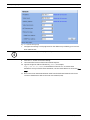
Click the Network link to open the Network Settings page.
Bosch Security Systems, Inc.
VG4-100 Series User’s Manual
F01U028033 | 1.0 | 2006.08