1
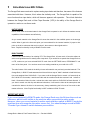
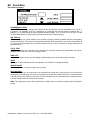
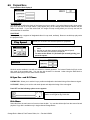
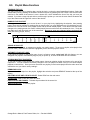
Bookmark limits There is no limit to the number of bookmarks you may have, except that there can only be one bookmark per frame. Speed changes at bookmarks When the deck plays past a bookmark set with a speed change, it will change the deck to the new speed. Remember, this is a one-way change. Your original speed will not later be restored automatically. Tip: Set a bookmark with your original speed at the beginning of the playlist, so whenever you recue, you’ll restore your desired starting speed. Speed ramps at bookmarks Instead of setting an abrupt speed change at a bookmark, you may set a speed ramp between two bookmarks. Set the first bookmark as “Begin ramp”, and give it your initial speed. Set the second bookmark as “End ramp”, and set the terminal speed. The software will gradually ramp from the first speed to the last speed between the bookmarks. Remember, this is a one-way change. Your original speed will not later be restored automatically. Tip: Set a bookmark with your original speed at the beginning of the playlist, so whenever you recue, you’ll restore your desired starting speed. Changing bookmark location While you cannot drag a bookmark to a new location, you can right-click on it and select “Change location.” Features Insert source clip / add source clip (playlist) If you right-click on a playlist entry, the first two menu items that appear are “Insert source clip” and “Add source clip.” These will both show you the names of all clips in the current source folder. Selecting a clip will either insert it before or add it after the current entry. With these two menu items, you can avoid switching to the sourcelist window to add another clip to your playlist. Split clip (playlist) Splits the current clip into two clips; the current frame becomes the out-point of the first clip, and the next frame becomes the in-point of the new clip. Auto split clip (playlist) In a playlist entry with multiple bookmarks, auto split clip will split the clip at each bookmark. Generic bookmarks Ctrl+B will allow you to drop a bookmark at the current frame, while recording or playing back, in the playlist or sourcelist. Bookmark navigation Tab and shift+tab will jump you to the next and previous bookmark. This is great for sports instantreplay uses – drop a bookmark during record, whenever there’s interesting action, and instantly jump to it on playback. Then hit Tab, and jump to the next bookmark. Bookmarks on the timeline Left-clicking on a bookmark will jump to it. Right-clicking on a bookmark pulls up a properties menu that allows you to set the name, hotkey, speed, and whether it’s the beginning or end of a speed ramp. Omega Deck Manual, Fast Forward Video, Inc. – Revised 1/06/04 21