1
18
Enrolling your credentials through the Remote Proctor Cont.
7.
8.
9.
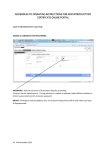
The system will then upload your information to the Remote Proctor Server. Please wait as this may take a minute or so.
When the upload is complete, you will see a confirmation that all the necessary information has been gathered. If all the items in the list have a
check mark next to them, you should select the “Submit” button. (If any of the items was not obtained there will be a red “X” beside the item.
If so, you should select the , “<-Previous” button until you get back to the appropriate page and re-enter the information.)
When the system has stored all the User Information and Biometric data, you have completed the enrollment. The system will display a confirmation message. Select the “Close” button and you will be returned to your Blackboard User Home page.
Figure 12. The system uploads the enrollment information. Please wait as this may take a minute or so.
Figure 13. Select “Submit if all of the Summery items show a green check box. If there is a red “x” then select
“Previous” and re-register the missing items.
Figure 14. Enrollment Confirmation. Select ‘Close”