1
ReportWare
presented; otherwise, you will see a more extensive menu which includes all this,
plus more—all of which is described below in the section on Dance Dollars.
3. Dummy records are provided with employee ID’s of 1 through 8. This demo will not
let you set up new employees, but you may edit these as you please. Some demo
employees have quite a lot of information and even photographs; some don’t. If you
don’t like the information you see, change it. Only social security numbers may not
be changed.
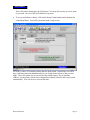
4. You may enter all the Dance and Regular Employee Timekeeping records you wish.
Use these to experiment and learn the software, then you may delete these records
when you wish. Do not be afraid to experiment with making new entries and dummy
records.
ReportWare’s Main Menu
INTERFACE AND MODULE NOTES
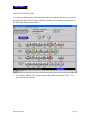
1. When you launch the program, you will be presented with ReportWare’s Main Menu.
Simply click on whatever looks interesting. Lost?? You can return to the Main
Menu by pressing the Main Menu button or typing Ctrl-2 from any screen.
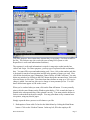
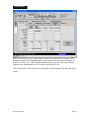
2. Interface notes: This program is very button and mouse oriented for ease of use. For
example, in several modules, such as the Main Employee Module, you will notice the
File Tab looking buttons labeled “Main Data”, “Tax & Payroll”, etc.
Main
Da ta
Ta x &
Payroll
Pe rs onne l
Photo &
Date s
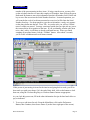
Click on these to navigate to more data entry screens. Some screens, for example,
“Tax & Payroll”, have submenu buttons like “Transfers”, “Emp. Times”, etc.
Transfer s
Emp. Time s
Be nefits
Try clicking around on these. Wherever you see a little green grid like button at the
left side of a scrolling list, you may click on it for more information.
The little gray graph like button at the top of lists will cause the list to sort in the
order named.
The small yellow box with a question mark gives on screen instructions. The Tab
key is used to go from one field to the next; shift-tab goes backward. The Enter key
(by the number keypad, not the Return key) dismisses dialogs and makes things
happen.
Demo Instructions
Page 3