1
40 Perfect Layers (Home)
Masking Layers
Masking allows you to selectively blend layers together. It is the heart of using Perfect Layers.
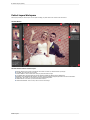
Creative examples of what you can do with masks:
Change heads from one image to another.
Replace the sky by merging exposures or image together.
Add a vignette.
Burn or Dodge to lighten or darken selective areas.
Combine a motor drive sequence.
Create a montage.
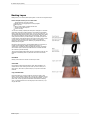
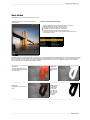
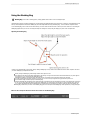
You can think of masking as painting with black paint on white paper. A white mask
reveals all the layer that the mask is attached to. An all white mask is considered
blank or empty and shows all the selected layer. As you use the masking tools, you
are adding black paint (Paint-Out mode). Where you paint with black you are hiding
the current layer, allowing the layer(s) under it to show through. Think of it like
cutting a hole in the mask. If you make a mistake, you can switch your paint color
to white (Paint-In mode) and paint the layer back in like an eraser. When you paint
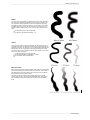
you have more than just white or black, but any shade of gray in between
depending on the opacity of the brush. Shades of gray partially hide the layer,
blending the layers together.
Each layer in Perfect Layers has a mask automatically added to it. This allows you
to blend each layer differently. Masking in Perfect Layers is done in a
nondestructive, re-editable way that is compatible with Photoshop. The masking
done in Perfect Layers is stored as layer masks which can be viewed and edited
later in Perfect Layers and Photoshop.
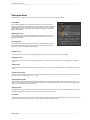
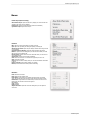
There are several global masking options that can be accessed from either the Tool
Options Bar or the Masking Menu. They affect the entire mask on the selected
layer.
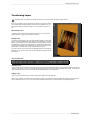
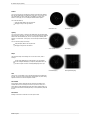
Reset Mask
Reseting a mask returns it to all white. The entire layer is visible.
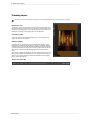
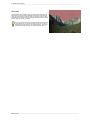
Invert Mask
Invert swaps the white for black and black for white. What was hidden is now
revealed and vice-versa. Inverting a mask can be very useful. It allows you to
paint a layer in, rather than out, which is handy if you only want to work with a
small area.
Copy and Paste Mask
Perfect Layers allows you to copy the mask from one layer to another. This is
handy if you have painted a complex mask on one layer for an adjustment and you
wish to use the same mask on another layer for a different adjustment. To copy or
paste a mask, use the Copy Mask and Paste Mask commands from the Masking
menu. It is important that the source and target layers are the same size, or you
may get odd results.
Perfect Layers