1
Chapter 4
Bios Settings
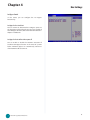
Accessing the BIOS menu
You will need to enter the BIOS Setup program to configure
the system when you are installing a motherboard or
when the system prompts “Run Setup” during start-up.
This section explains how to configure your system using
this program.
Even if you have never enter the BIOS Setup program
when you are installing a motherboard, you can change
the configuration of your computer in the future with
the BIOS Setup program. For example, you may want to
enable the security password feature or change the power
management settings. This requires you to configure
your system using the BIOS Setup program so that the
computer can recognize these changes and record them
in the CMOS RAM .
The Setup program is designed to make it as easy to use as
possible. Being a menu-driven program, it lets you scroll
through the various sub-menus and make your selections
from the available options using the navigation keys.
Note: This manual describes the standard look of
the setup screen. There may be some instances in which
the motherboard features can vary from one to another
due to customization. This means that some of the options
described in this manual mays not match that of your
motherboard’s AMIBIOS.
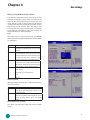
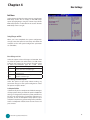
Navigating the BIOS menu
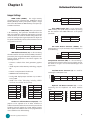
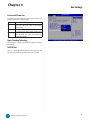
The BIOS setup utility uses a key-based navigation system
called hot keys. Most of the BIOS setup utility hot keys can
be used at any time during the setup navigation process.
Keys
-><- Left/Right
->
>-
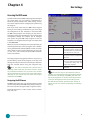
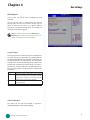
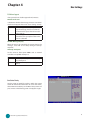
When you start up the computer, the system provides you
with the opportunity to run this program. Press <Delete>
during the Power-On-Self-Test (POST) to enter the Setup
utility (There are a few cases that other keys are used, such
as <F1>, <F2>, and so forth.); otherwise, POST continues
with its test routines.
Up/Down
+- Plus/Minuss
Tab
Description
The Left and Right <Arrow> keys
allow you to select an setup screen.
For example: Main screen, Advanced
screen, Boot screen, and so on.
The Up and Down <Arrow> keys
allow you to select an setup item or
sub-screen.
The Plus and Minus <Arrow> keys
allow you to change the field value
of a particular setup item. For
example: Date and Time.
The <Tab> key allows you to select
setup fields.
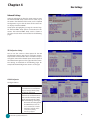
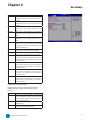
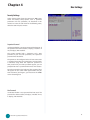
Note: The <F8> key on your keyboard is the FailSafe key. It is not displayed on the key legend by default.
To set the Fail-Safe settings of the BIOS, press the <F8>
key on your keyboard. It is located on the upper row of
a standard 101 keyboard. The Fail-Safe settings allow
the motherboard to boot up with the least amount of
options set. This can lessen the probability of conflicting
settings.
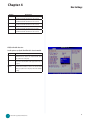
These keys include <F1>, <F10>, <Enter>, <ESC>, <Arrow>
keys, and so on.
Network Application Platforms
16