1
CHAPT ER 2
Working with SMART Table Toolkit
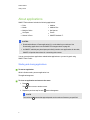
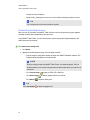
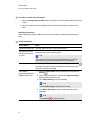
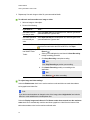
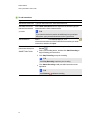
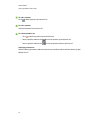
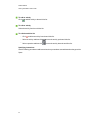
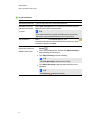
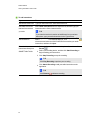
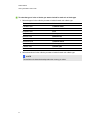
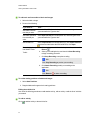
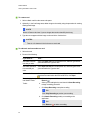
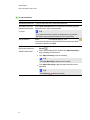
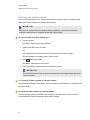
g To add instructions
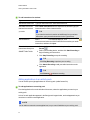
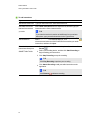
If you want to...
Then...
Add written instructions. Type your instruction in the Show instructions box.
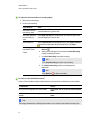
Add audio instructions
read out from text that
you write.
Select Read instructions from the drop-down list,and then type your
instructions in the Show instructions box.
T
TIP
If you want the text that is read out to be different from your written
instructions, type your audio instructions in the Type text box.
Add an audio file.
Select Import audio from the drop-down list, click Import from File
to browse to and select the WAV or MP3 file that contains your audio
instructions, and then click Open.
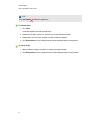
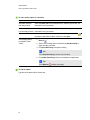
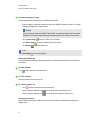
Record audio
instructions directly into
SMART Table Toolkit.
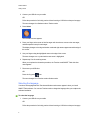
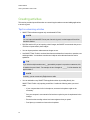
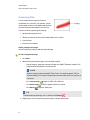
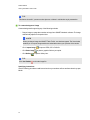
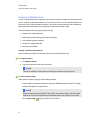
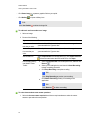
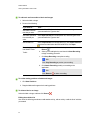
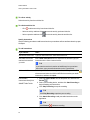
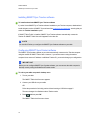
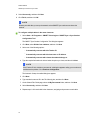
1. Select the Import Audio from the drop-down list, and then click
Record
.
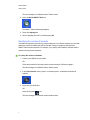
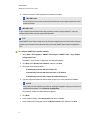
2. Select your recording device, and then click Start Recording to
begin recording your instructions.
3. Click Stop Recording to stop the recording.
T
TIP
Click Play Recording to preview your recording.
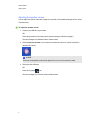
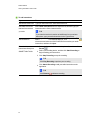
4. Click Attach Recording to add your audio instructions to the
application.
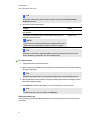
T
TIP
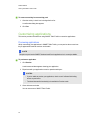
Click Remove
63
to delete a recording.