1
QMF 33
SERIES 425/X425 User Manual. May 2004. Iss. 12
PART VI: QUICK START OPERATING INSTRUCTIONS
Introduction
•
•
•
Before starting the X-425 System program you should have read the software and hardware
installation instructions in Parts III, IV and V. If you have yet to configure a Series 425 or you want to
change sensor types open the Configure X-425 System. Refer to Part V: SOFTWARE
ENVIRONMENT for instructions how to do this.
Power up the Series 425 unit(s).
Switch on your PC and open Windows ‘95.
Starting the system- Configuration
•
•
•
•
•
•
•
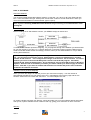
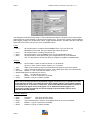
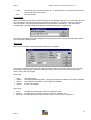
Click Start, Programs, X-425, Configure X-425.
Click Read Settings if your 425 unit is already configured for your requirements or …
Click New to configure your 425 unit afresh or …
Click File, Open to load a previously saved file.
Click Write Settings button to download the current file configuration to the Series 425.
Click Update Scan to update the X-425.IDK interface for compatibility with the config. file in use.
Click Exit.
Running the system
•
•
•
•
•
•
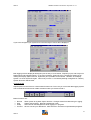
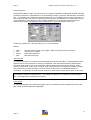
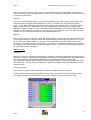
Click Start, Programs, X-425, Run X-425 System to start and to bring up the X-425 System default
mimic screen. In the mimic, all connected sensor readings will be displayed in the Analogue Input
array. The system will initially be in Monitoring mode.
All Digital Inputs will be set to ON (default).
All Digital Outputs will be set to OFF (default).
Frequency Input will be 0.00 (default).
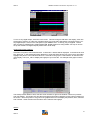
To start logging, click the Record button in the Commands function bar.
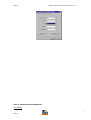
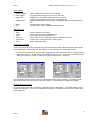
In the Data Logging Store File dialogue box that appears, type in your store file name. For example
C:\SCAN1000\X-425\TEST.STR where TEST.STR will be your store file. File name to be no more
than 8 characters. Click OK and logging will start as the Monitoring mode legend changes to Logging.
To view a trend, digital input or digital output graphs click an appropriate array box.
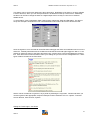
Click Setup to change system scan rate if you need to. In the Recorder dialogue box enter your new
scan rate in the Scans, Time text box. Click OK.
To end logging click Stop. The system will revert to Monitoring mode.
Converting Store files
•
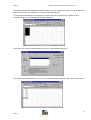
To convert a store file for use with Excel spreadsheets click the Convert button. In the dialogue box
that appears enter a name for the file or use the one displayed. Click OK and the file will be converted
and saved to your X-425 directory. Open Excel. Find File, Open and locate the converted file in your
X-425 directory. Please note that Excel regards the converted file as a Text (txt) file.
Leaving the system
•
To leave X-425 system click Exit.
PART VII: WARNING AND ERROR MESSAGES
28
QMF 33