1
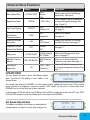
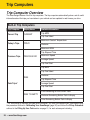
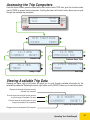
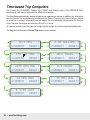
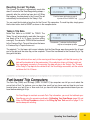
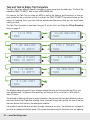
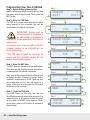
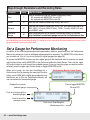
Step-through Parameters and Recording Rates
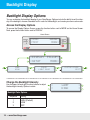
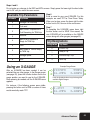
Parameters
Display
Step Thru Intervals
Time
T
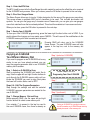
Data is recorded and can be viewed incrementally every:
- 0.2 seconds with MONITOR Turned OFF
- 0.4 seconds with MONITOR turned ON
Speed
S
Data can be viewed incrementally every 5 MPH/KPH
Distance
D
Monitored
Gauge
M
Data can be viewed incrementally every 100ft with special data points at:
60ft, 330ft (1/16 mile), 660ft(1/8 mile), 1320ft (1/4 mile), 2640ft (1/2 mile)
and 5280ft(1 mile)
Data is recorded and can be viewed incrementally every 0.4 seconds
Only Available if a monitored gauge was set for the Performance Run
The rate at which data is recorded may vary for each data parameter. Factors that can affect the recording rate include the
particular protocol your vehicle uses (see page 57), whether or not you have set the Performance Monitor to monitor a built-in
gauge (see below), and even the vehicle itself.
Set a Gauge for Performance Monitoring
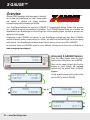
In addition to the three key performance data parameters; distance, speed and time, the Performance
Monitor also allows you to set an additional data parameter for recording. The MONITOR function allows
you to select and “turn on” any one of the built-in digital gauges (see page 24).
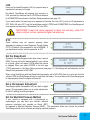
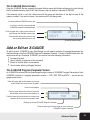
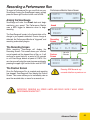
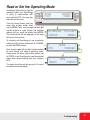
To access the MONITOR function and set a digital gauge to be monitored, start by pressing the upper
right function button next to MONITOR on the Performance Monitor Home Screen. Next, use the upper
left function button to cycle through the available gauges. Once you have the gauge you want to monitor
selected, press the upper right function button to toggle MONITOR to ON.
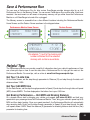
When you’re ready, you can arm ScanGauge for a
Performance Run by pressing the lower right function
button next to ARM. With a digital gauge selected, and
the Monitor set to ON, the Performance Monitor will
now record data for the selected gauge.
Performance Monitor Home Screen
<DATA
Displays the currently
selected gauge
Push to cycle through the
available gauges
Push to return the
previous screen
48 — www.ScanGauge.com
MONITOR>
<MEMORY
ARM>
Push to toggle MONITOR
ON and OFF
RPM
MONITOR ON>
<BACK
ARM>
Push to arm ScanGauge for
a Performance Run