1
8. Select OK to save the new device settings.
DETERMINING WHEN THE POSITION IS VALID
SAVECONFIG COMMAND
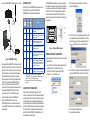
9. Select the new configuration from the Available device
configs area of the Open dialog.
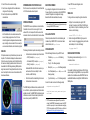
When the receiver has a valid position, the Solution Status field
in CDU’s Position window shows Computed:
If you change the configuration of a function and want to save
the new settings for your next session, use the SAVECONFIG
command. This applies to most configuration changes,
Bluetooth and ER enable and disable, for example.
10. Select the Open button to open SMART-MR15
communications.
ENTERING COMMANDS
As CDU establishes the communication session with the
receiver, it displays a progress box. Once CDU is connected, the progress box disappears and several windows
open, including the Console window. CDU is now ready for
use to view status information, enter commands, or log data.
USING CDU
CDU provides access to key information about your receiver and
its position. The information is displayed in windows accessed
from the View menu. For example, select Position Window from
the View menu to display the position solution of the receiver. To
show details of the GNSS and geostationary (SBAS) satellites
being tracked, select the Tracking Status Window from the View
menu. Select Help from the main menu for more details on CDU,
its windows and features.
The SMART-MR15 uses a comprehensive command interface.
Commands can be sent to the receiver using the Console
window in CDU, which is opened from the View menu. Enter
commands in the text box at the bottom of the Console window.
When using NovAtel CDU, please close all graphical windows prior
to issuing the SAVECONFIG command.
CELLULAR ACTIVATION
Follow the procedure outlined in the cellular activation guide
included with your SMART-MR15. To check cellular modem
status information, enter log cellstatus.
The following information is important when entering commands:
•
Commands can be entered and output in three formats:
CONFIGURING NTRIP
Obtain the following information from your NTRIP caster:
•
IP address (caster_address in the following
example)
•
IP port (80 in the following example)
Abbreviated ASCII is the best format to use when you
want to work with the receiver directly. For data
collection, use ASCII or Binary.
•
Mount point (caster_mount in the following example)
•
User ID and password (userid and password in the
following example)
•
Click Enter to send the command string to the receiver.
•
Type of corrections (rtcmv3 in the following example)
•
Commands are not case sensitive.
•
ASCII (for example, log bestposa)
•
Abbreviated ASCII (for example, log bestpos)
•
Binary (for example, log bestposb).
The OEMV Family Quick Reference Guide, available on the CD
or on our Web site, provides comprehensive information about
available commands. The SMART-MR15 User Manual provides
information on a subset of these commands; in particular, the
ones commonly used by the SMART-MR15.
Connect to the caster as shown in the following example:
ntripcaster caster_address 80
ntripclient mount caster_mount userid password rtcmv3
NTRIP commands are save-configurable. After you save the
settings, the SMART-MR15 will automatically connect to the NTRIP
caster after a power cycle. For more information about configuring
NTRIP, refer to application note APN-057 found on our Web site at
http://www.novatel.com/support/knowledge-and-learning/.
To view NTRIP status and configuration, enter:
log ntripstatus
NMEA LOGS
To configure the receiver output through the command line:
1. Configure the communication port using the COM
command. For example, to set COM port 1to 9600 bps, no
parity, 8 data bits, 1 stop bit, no handshaking, echo off, and
break on, enter the following:
com com1 9600 n 8 1 n off on
2. Select and configure the NMEA string that you want to
output. For example, to log gpgga (position system fix data
and undulation) at 2 Hz, enter the following:
log gpgga ontime 0.5
ENABLING SBAS POSITIONING
This positioning mode is enabled using the SBASCONTROL
command, as follows:
sbascontrol enable auto
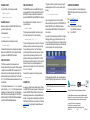
Once enabled, the Solution type field shown in CDU’s Position
window changes from Single to SBAS, and you may see SBAS
satellites in the Constellation window. SMART-MR15 will track
available SBAS satellites, including WAAS, EGNOS and other
SBAS systems.