1
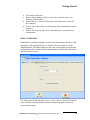
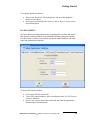
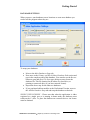
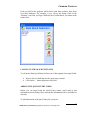
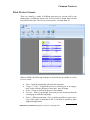
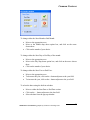
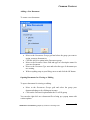
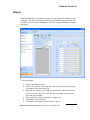
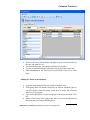
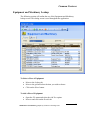
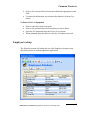
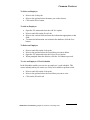
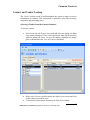
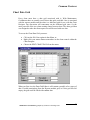
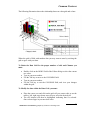
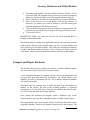
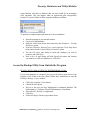
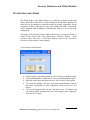
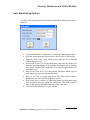
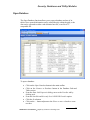
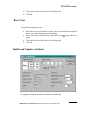
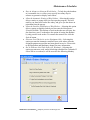
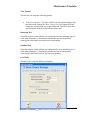
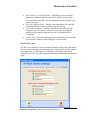
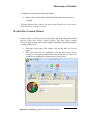
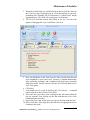
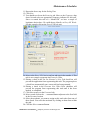
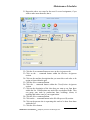
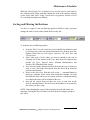
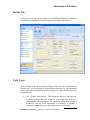
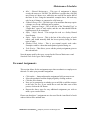
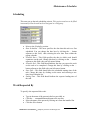
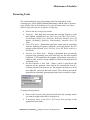
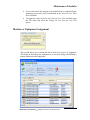
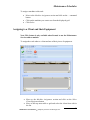
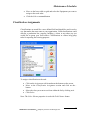
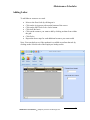
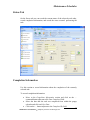
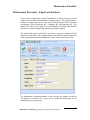
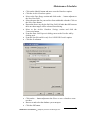
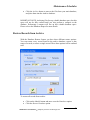
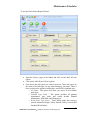
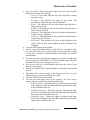
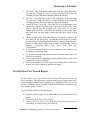
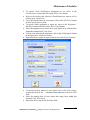
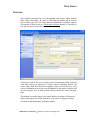
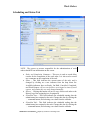
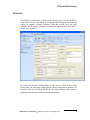
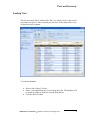
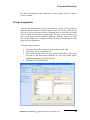
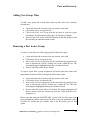
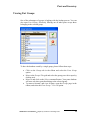
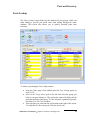
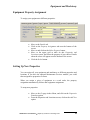
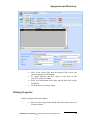
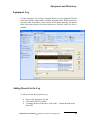
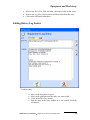
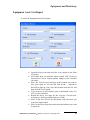
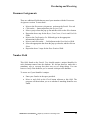
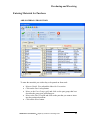
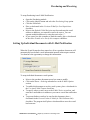
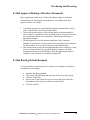
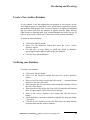
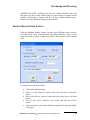
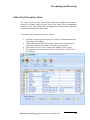
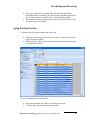
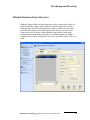
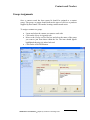
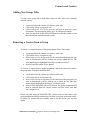
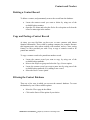
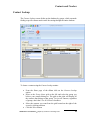
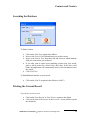
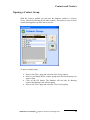
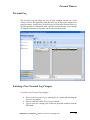
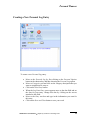
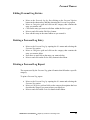
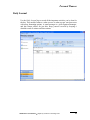
Parts and Inventory Adding New Group Titles To add a new group title to both those listed on disk, and to the currently selected part: Locate and select the inventory item you want to work with. Click on the Group Assignments tab Click in the Enter New Group text box and type in your new group description. This description can be up to 30 characters in length. Move to and click on the ADD/NEW button to add this group to both the selected part, and those listed on disk. Removing a Part from a Group To remove a part from one of the groups please follow these steps: Locate and select the inventory item you want to work with. Click on the Group Assignments tab. Move to the Current Assignments list box and select the group title you want to disassociate with by clicking on it from within the list. The item should appear highlighted showing it is indeed selected. Move to and click on the Delete button. To remove a part from a group assignment, and at the same time remove the group name from those listed on disk please follow these steps: Locate and select the inventory item you want to work with. Click on the Group Assignments tab. Move to the Current Assignments list box and select the group title you want to disassociate with by clicking on it within the list. The item should appear highlighted showing it is indeed selected. Move to and click on the Master Del button. The group assignment will then be remove from the current part and ALL other parts that were assigned to it. Please note that using the MASTER DEL routine will not only remove the group assignment from the current item, but from every item associated with it. So please be certain that you actually want to do this before you use this option. Maintenance Coordinator Simplicity Software Technologies Inc. 13