1
DIGITAL YACHT
WL400 Quick Start Guide
4. Getting Started Guide for Windows Users
The WL400 is supplied with Windows compatible drivers that allow it to be used as a second Wireless Network Adaptor
on your laptop. You can either install the drivers and use the normal Windows Wireless Connection function to scan,
select and connect to a wireless hotspot or you can use the free Realtek Wireless Lan Utility software which is also
supplied on the memory stick.
For simplicity, we would recommend just installing the drivers and not using the Realtek utility, but for older Windows XP
systems (prior to Service Pack 3) the Realtek utility can sometimes provide better performance than the Windows
Wireless Zero Configuration manager that Microsoft provided.
It is very important that you do not plug the WL400 in to a USB port on your computer unless you have the WL400 Drivers
USB Memory Stick inserted in your PC. By plugging in the WL400 you will initiate the Windows “Found New Hardware
Wizard” which will not be able to complete correctly without the Drivers on the USB Memory stick being present. The
installation process varies depending upon which Operating System your computer has, so please ensure that you follow
the correct procedure.
Installation for Windows Vista and Windows 7 (On-Line)
By far the easiest method of installation, if your PC is running
Windows Vista or Windows 7, is to connect the PC to the internet, as
you would normally do, using the internal wireless adaptor and then
plug the WL400 in to a spare USB port on the laptop.
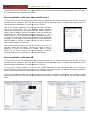
Figure 1
Windows will detect the new hardware and display the message
shown in Figure 1. It will then automatically search the on-line
Windows Update server for the correct drivers. Depending upon the
speed of your PC and internet connection this should take between 20
seconds and a couple of minutes to complete.
At any time, you can click on the message and the Window in Figure 2
will be displayed giving you the status of the driver installation.
Figure 2
After the correct driver has been found, downloaded and installed the
Window in Figure 3 should be displayed. The drivers are now installed
correctly and you are ready to use the WL400 to find and connect to a
wireless hotspot. Proceed to the “Operating WL400 on Windows Vista
and Windows 7” section.
Installation for Windows Vista and Windows 7 (Off-Line)
Figure 3
If you cannot connect to the internet, you can install the drivers from the supplied Digital Alltek USB memory stick.
Insert the USB memory stick and then insert the WL400 in to a spare USB port on your PC. Windows will detect the new
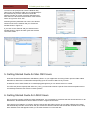
hardware but because the PC is not on-line, it will fail to install the device and display the message shown in Figure 4.
In order to install the drivers correctly from the memory stick, it is
necessary to go to the Windows “Device Manager”. To access the
Device Manager, click on the Windows “Start” button and then type
Device Manager in the Search bar directly above the Start button –
see Figure 5. At the top of the search results should be a “Device
Manager” entry, click on this and Windows will open the Device
Manager window.
Figure 4
The Windows Device Manager is basically a list of every component that makes up the PC. The devices are categorised
in to various types and because Windows did not know what type of device WL400 was, it has placed it in the Other
Devices section with a Yellow Exclamation Mark symbol next to it – see Figure 6.