1
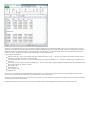
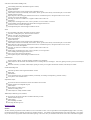
The data set is a rectangle with observations in rows and series in columns. Missing data can be represented by blank cells, by NA or several other options. (See users’
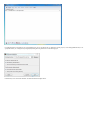
guide). The data are imported from Excel using the Menu items |File|Open Data|Import|Excel| and selecting the relevant file. Gretl will try to determine various features of
the file and will ask you to confirm these features. (It generally does this well). In the current case it determines that the data are time series and labels the observations
with the correct dates. The data are now entered on the Gretl Workplace. Gretl can import data from
a large number of other programs
Plain text (ASCII) files – These can be brought in using gretl's |File|OpenData| Import ASCII. . . | menu item, or the import script command. For details on what
gretl expects of such files, see Section 4.4. of the users’ guide.
Comma-Separated Values (CSV) files – These can be imported using gretl's |File|Open Data|Import CSV. . . menu item, or the import script command. See also
Section 4.4.
Spreadsheets: MS Excel, Gnumeric and Open Document (ODS) – These are also brought in using gretl's |File|Open Data|Import| menu. The requirements for such
files are given in Section 4.4. of the user’s manual
Stata data files (.dta).
SPSS data files (.sav).
Eviews workfiles (.wf1)
JMulTi data files
gretl can also access some Rats 4 and GiveWin through its data bank routines. On occasion owners of proprietary software may make changes to their native data
formats and it is possible that the gretl routines may not work with the latest versions of these formats.
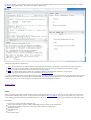
Gretl has its own native data format and it is possible to save all or a selection of our data in this format with the menu item |File|Save Data|. It can then be loaded directly
from the |File| Open Data|User File| menu item.
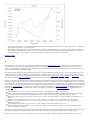
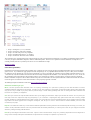
Examining the menu items shows the variety of work that can be completed in gretl. The following graph and its annotations were produced in two steps.