1
INSERTING/REMOVING YOUR iPad®
PAIRING YOUR ZAGG Folio
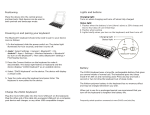
To insert your iPad into the Folio, start with the Folio’s
keyboard facing you. Then, with your iPad in landscape mode
and the volume control buttons facing out (the Home button
is on your right) set the bottom half of your iPad in the cover,
making sure it is settled (you may need to apply light pressure
to your iPad to ensure it is settled at the bottom of the cover).
Next, snap the top half into the cover. Check all corners to
make sure they have seated properly as well.
Pairing your Folio with your iPad is easy. It should only need to be paired once,
using the following directions. If the connection between your iPad and Folio is
ever lost, repeat these steps.
When your iPad is secure in the Folio, you can close it and
cleverly placed magnets will activate your iPad’s sleep/wake
feature to help preserve battery life. Simply open your Folio to
wake your iPad.
3. Your iPad will display “ZAGG Folio”
as an available device. Select this option to
complete pairing.
1. O
n your iPad select: SETTINGS > BLUETOOTH > ON.
2. Press and hold the Bluetooth button for three seconds.
A blue LED under the Power key will flash until your
Folio and iPad are paired.
CHARGING
To easily remove your iPad, grasp the top of the Folio’s cover
in the middle and apply a light pressure to the back of your
iPad. Grasp your iPad’s exposed side and lift/pull away from
the Folio.
POWERING ON AND OFF
To turn your Folio on, press the Power button. A green
LED on the battery key will illuminate briefly while the
keyboard powers up. To turn your Folio off,
press and hold the Power button for
three seconds. A red LED will flash,
indicating your Folio has turned off.
1
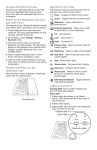
Your Folio features a powerful lithium polymer battery that lasts for up to two
years of normal use between charges*. It comes with a charging cable you can
use to charge your keyboard quickly and conveniently. To charge your Folio,
follow these steps:
1. Plug the micro USB connector into the charging port.
2. P
lug the regular USB connector into any 5V USB outlet.
3. A
red LED on the battery key will illuminate to indicate your Folio is charging.
Wait until this light turns off, indicating a full charge. It usually takes 2-4
hours to completely charge your Folio.
4. R
emove the micro USB connector and enjoy your Folio for up to two years
before you need to charge it again.
*Normal use is approximately one hour of use per day without the backlit feature. Using the backlit feature will impact battery life and will
require more frequent charging.
CHARGING PORT
2