1
Training Manual
COPYRIGHT © 2013 IGE+XAO. All rights reserved
QQ.1.1.
FILES FOR LABEL TEMPLATES
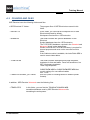
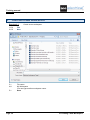
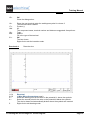
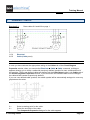
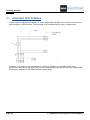
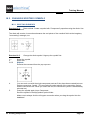
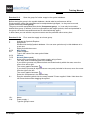
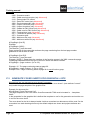
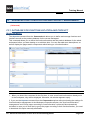
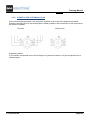
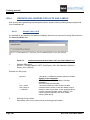
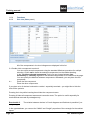
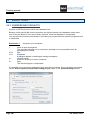
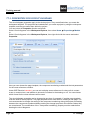
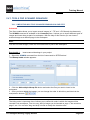
The label template always contains 5 CDS, LBL, LBP, LBV and ~LBL files. You must back up these
files. If you want to create a new label template using an existing template, copy these 5 files in
Windows Explorer, a "Copy of .... *" is created.
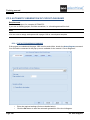
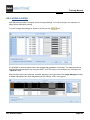
Then, you can rename the label template in the start window of the List and Labels Designer.
QQ.1.2.
CHANGING LABEL TEMPLATES
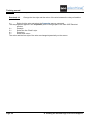
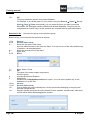
If changes of the Label Layout are required after the label has been created (for example, the result
after printing does not match the label or it is not positioned correctly), you can change your label
template.
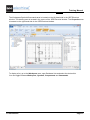
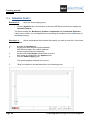
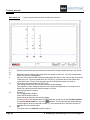
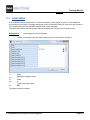
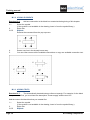
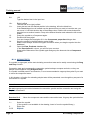
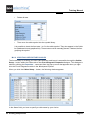
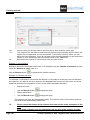
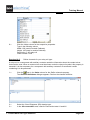
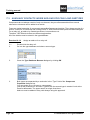
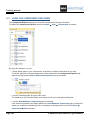
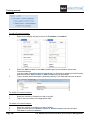
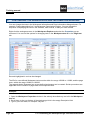
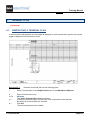
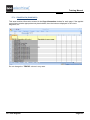
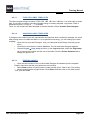
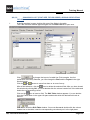
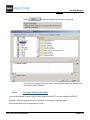
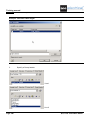
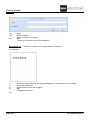
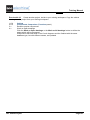
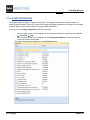
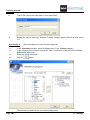
▪ Open the List and Label Designer, click your label and select Design from the pop-up
menu.
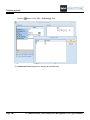
▪ Click Next to reconfirm the chosen database. The List and Label Designer appears.
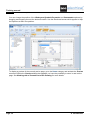
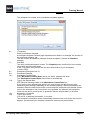
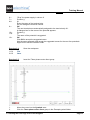
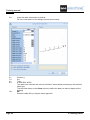
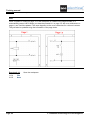
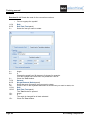
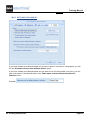
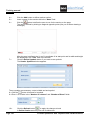
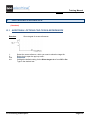
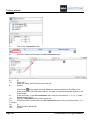
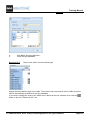
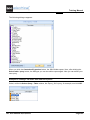
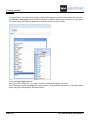
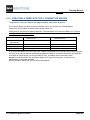
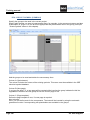
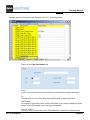
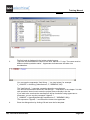
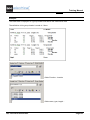
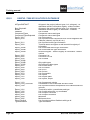
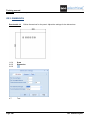
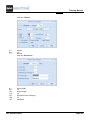
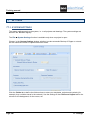
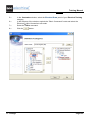
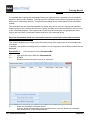
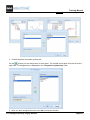
▪ Choose Project ➤ Page setup and then, in the Layout window, select the Page setup
tab to change the position and the size of the label. Click the Printer Selection tab to
change the printer, too.
QQ.1.3.
PRINTING LABELS
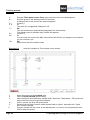
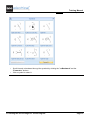
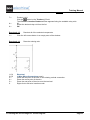
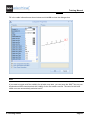
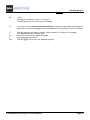
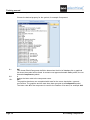
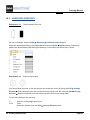
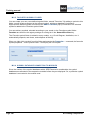
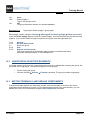
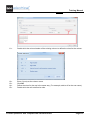
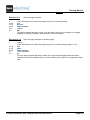
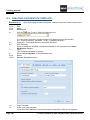
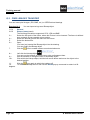
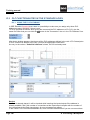
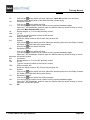
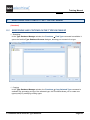
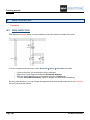
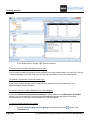
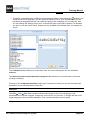
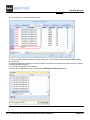
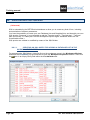
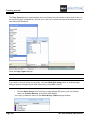
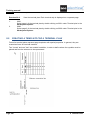
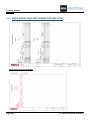
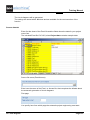
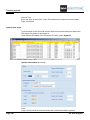
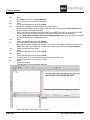
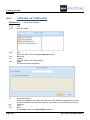
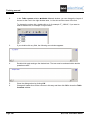
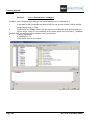
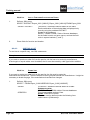
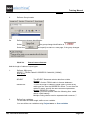
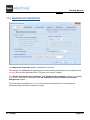
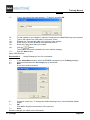
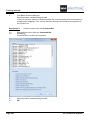
▪ Open the start window of the List and Label Designer and double-click the template.
Please, make sure that the print options are set correctly.
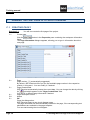
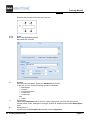
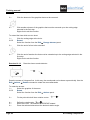
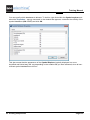
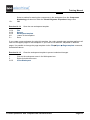
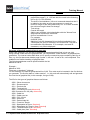
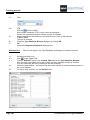
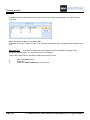
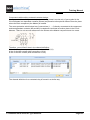
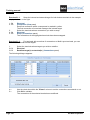
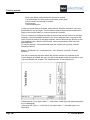
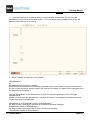
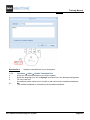
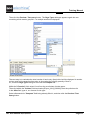
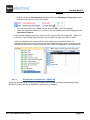
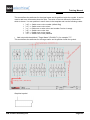
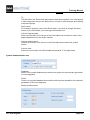
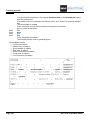
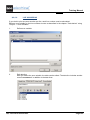
▪ Select Start position to specify where to start printing (line 2, label 3 left). This setting
allows continuing after a paper break. Click Select, and then click on the field to start.
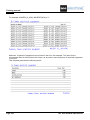
Then, print the labels.
QQ. Lists and Labels Editor
Page 331