1
SOFTWARE INSTALLATION GUIDE
Windows Users
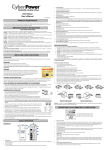
You will need to install the included software on to your computer to take
advantage of the UPS computer software control features.
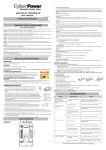
6 - Full-Time Surge Protection Outlets
1. Place the CD in your CD drive and wait for the setup wizard to begin. If
the wizard does not begin, go to your CD drive in "My Computer" and open
the folder and double click "Setup.exe".
This LED indicator will illuminate to warn the user that a wiring problem
exists, such as bad ground, missing ground or reversed wiring. If this is
illuminated, user is advised to disconnect all electrical equipment from
the outlet and have an electrician check to ensure the outlet is properly
wired. The unit will not provide surge protection without being plugged
into a grounded and properly wired wall outlet.
The unit has four always on surge suppression outlets.
7 - Electrical Wiring Fault Indicator
2. Follow the instructions on your screen and complete the installation.
The default settings offered by the installation wizard are acceptable for
most users and can be changed at any time if necessary.
8 - Communication Protection Ports
3. After the setup is complete plug the USB cord from your Panamax UPS
to an available USB port on your computer.
Communication protection ports will protect any standard modem, fax ,
telephone line, broadband network or Ethernet connection.
4. You are now ready to begin using the software.
9 - Circuit Breaker
Located on the back of the UPS, the circuit breaker serves to provide
overload and fault protection.
Mac Users
When you first get a new Panamax UPS, you'll need to configure the Mac
UPS function to control your UPS and begin using it. Configuring the
"Energy Saver" UPS Function
10 - Serial/USB Ports to PC
The USB and serial port allow communication from the UPS to a
computer. The UPS communicates its status to the software when
connected with a USB port. The serial port is only used with third party
UPS software such as the Microsoft UPS Power Option of Windows
2000, XP, and Vista. For information on configuring and using the serial
port and the Microsoft UPS Power Option or for information regarding
ordering a standard serial cable, please contact technical support at
www.panamax.com. Note: The serial port and USB port cannot be used
to control two computers concurrently. Only one port will function at a
time.
1. Plug the USB cord from your Panamax UPS to an available USB port on
your computer.
2. Go to "System Preferences" and open the "Energy Saver" control panel.
3. Select settings for "UPS".
You are now ready to configure the settings for the UPS.
11 Coax/Cable/DSS Surge Protection
The Coax/Cable/DSS surge protection ports will protect any cable
modem, CATV converter, or DSS receiver.
BASIC OPERATION
12 Input Power Cord
Connect the unit into an AC outlet.
DESCRIPTION
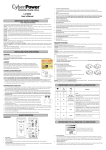
1 - Power Switch
Used as the master on/off switch for equipment connected to the battery
power supplied outlets.
2 - Power On Indicator
This LED is under the power switch. It illuminates when the utility condition
is normal and the UPS outlets are providing power, free of surges and
spikes.
3 - LCD Module Display.
High resolution and intelligent LCD display shows all the UPS information
with icons and messages. For more information please check the
“Definitions for Illuminated LCD Indicators” section.
4 - LCD Display Toggle/Selected Switch
The switch can be used to select the LCD display contents including Input
Voltage, Output Voltage and Estimated Run Time. The toggle frequency is
set to one time per second. Holding the switch for more than two seconds
while running on battery will silence the buzzer.
5 - Battery and Surge Protected Outlets
The unit has five battery powered/surge protected outlets for connected
equipment and ensures temporary uninterrupted operation of your
equipment during a power failure
2.