1
Improve print quality for copies
If you encounter print quality problems in copied documents, review the solutions for printed documents
listed previously in this document. However, some print-quality problems occur only in copied
documents.
●
If streaks appear on copies made by using the document feeder, clean the small glass strip on the
left side of the scanner assembly.
●
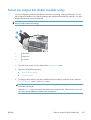
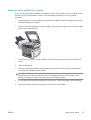
If dots or other defects appear on copies made by using the scanner glass, clean the scanner glass
and the white plastic backing.
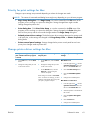
1.
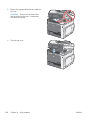
Use the power switch to turn off the product, and then unplug the power cord from the electrical
socket.
2.
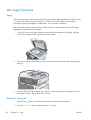
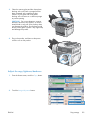
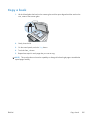
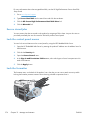
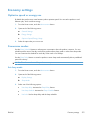
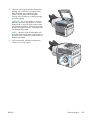
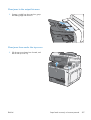
Open the scanner lid.
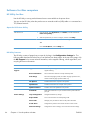
3.
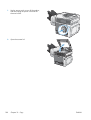
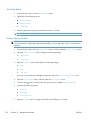
Clean the scanner glass and the white plastic backing with a soft cloth or sponge that has been
moistened with nonabrasive glass cleaner.
CAUTION: Do not use abrasives, acetone, benzene, ammonia, ethyl alcohol, or carbon
tetrachloride on any part of the product; these can damage the product. Do not place liquids
directly on the glass or platen. They might seep and damage the product.
ENWW
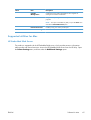
4.
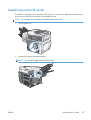
Dry the glass and white plastic backing with a chamois or a cellulose sponge to prevent spotting.
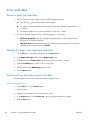
5.
Plug in the product, and then use the power switch to turn on the product.
Improve print quality
311