1
2.
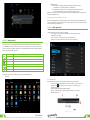
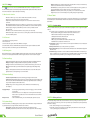
Application view.
A.
In Desktop view, six default shortcuts will be displayed, which you can later
customize based on your own particular needs and lifestyle.
B.The Application view allows access to all the application available in your device.
To open the main All Apps screen, touch the icon on any Home screen.
Note: on the locked screen the most recent application icons will be displayed when accessing the system
from either visualization mode.
2.2. Managing icons and different screens
In order to see the different screens, slide your finger to the left or to the right. You may customize the home
screen or any of the other screens by moving icons to another location. Just tap on the icon, drag it and drop it
at the location where you want to place it.
CHAPTER 3 Main applications
3.1. Internet access
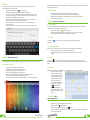
Configure the internet connection using your new tablet.
• Go to Settings and click on Wi-Fi ON/OFF switch in order to enable the wireless
Configuration on the tablet.
• Choose a wireless access point, and enter your login and password
• Select the Connect option on this menu to activate access to the internet.
CHAPTER 2 Getting started
2.1. Home screen
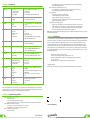
As soon as you power-on your tablet, you will see the Locked screen interface Slide your finger to the right to
access the Home screen. This screen provides quick access to the things you need most. The home screen
contains a System bar, located in the bottom left corner of the display, which includes six default navigation
buttons accessible by touching the screen:
IconName
Description
Back
Opens the previous screen you were working in
Home
Opens the Home screen
Recent apps
Opens a list of thumbnail images of apps recently used
Volume down
Tap on this icon if you want to decrease the volume level
Volume up
Tap on this icon if you want to increase the volume level
Shortcut
Opens the options menu for frequently used applications
In addition the user can choose between two home screen visualization modes:
1.
Desktop
3.2. Web browser
The browser allows you to enjoy a seamless surfing experience using your new tablet.
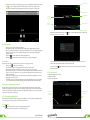
• Once you have successfully established an internet connection, you just need to tap on
the Browser icon
on the apps screen or the shortcut icon on a Home screen to
launch this application.
• At this stage, the following window will be displayed.
• The user can then configure all related navigation settings based on his/her
individual preferences.
4
User Manual
BLAZE 73G
5