1
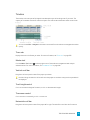
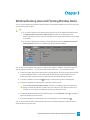
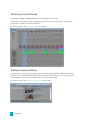
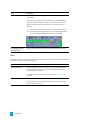
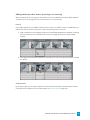
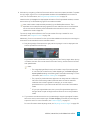
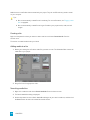
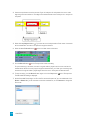
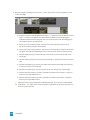
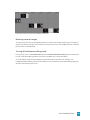
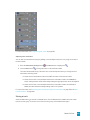
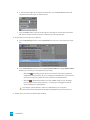
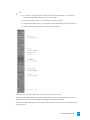
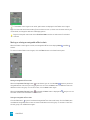
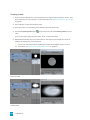
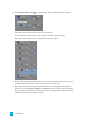
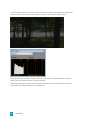
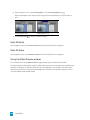
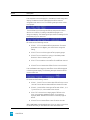
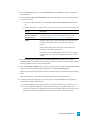
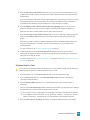
If you want the preview to fill the Video Preview window, right-click the display and choose Scale to Fit
Preview Window from the shortcut menu.
Tips:
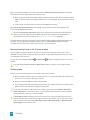
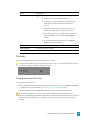
n If you want to emphasize frame rate during preview, right-click the Video Preview window and
select Adjust Size and Quality for Optimal Playback. When the command is not selected,
video quality is emphasized, and the frame rate will be reduced if necessary.
n Try setting the preview quality to Preview > Full and enabling Scale to Fit Preview Window.
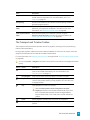
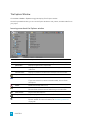
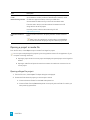
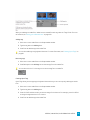
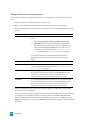
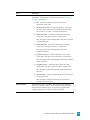
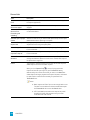
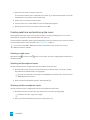
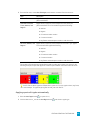
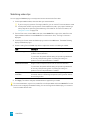
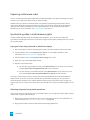
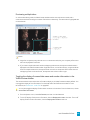
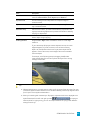
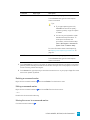
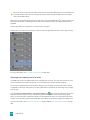
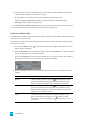
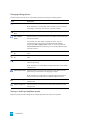
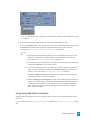
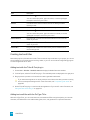
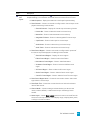
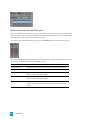
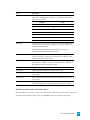
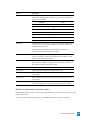
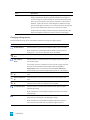
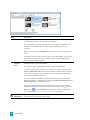
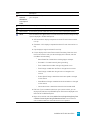
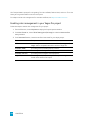
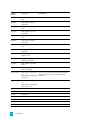
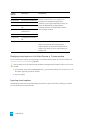
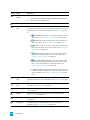
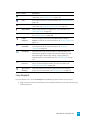
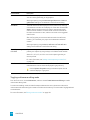
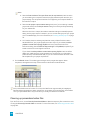
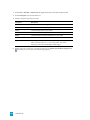
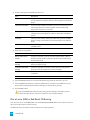
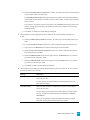
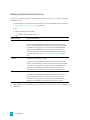
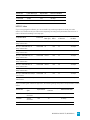
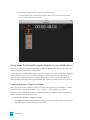
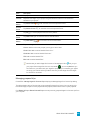
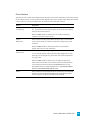
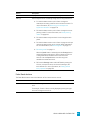
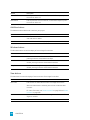
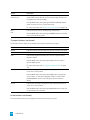
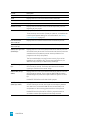
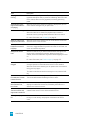
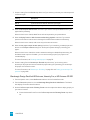
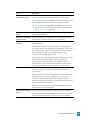
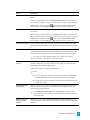
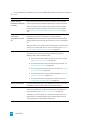
Item
Description
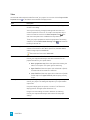
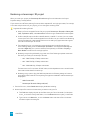
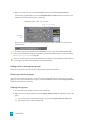
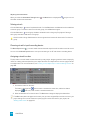
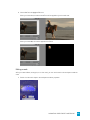
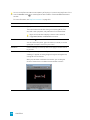
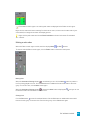
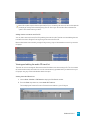
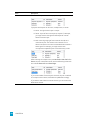
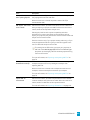
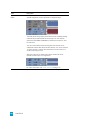
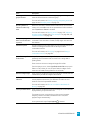
Preview
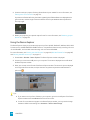
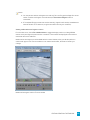
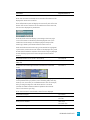
The Preview indicator in the Video Preview window represents the
setting of the Video Preview Quality button.
Display
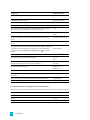
The Display indicator represents the current playback properties. If
you're using an Auto setting for preview quality, this indicator will
represent the scaled frame size. If your video preview is dropping
frames, you'll see the actual frame rate in this section.
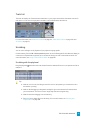
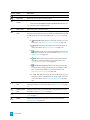
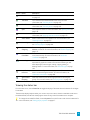
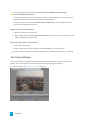
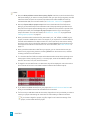
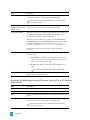
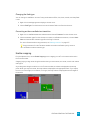
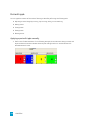
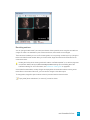
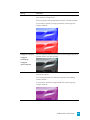
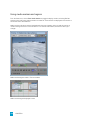
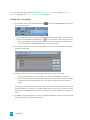
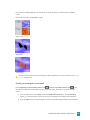
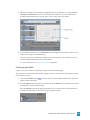
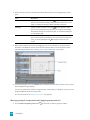
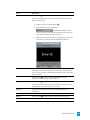
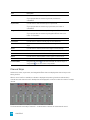
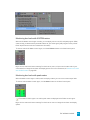
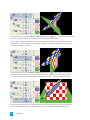
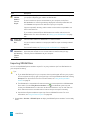
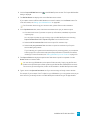
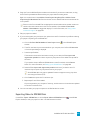
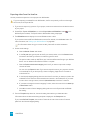
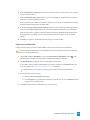
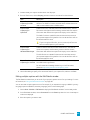
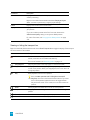
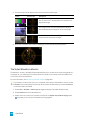
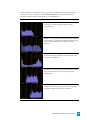
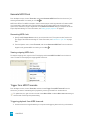
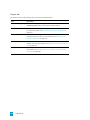
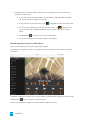
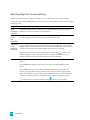
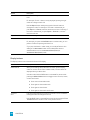
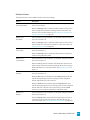
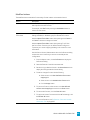
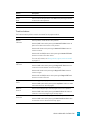
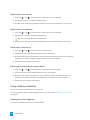
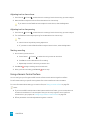
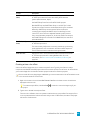
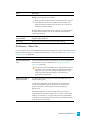
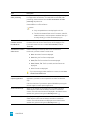
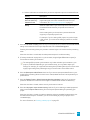
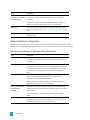
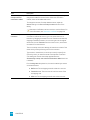
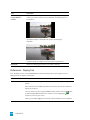
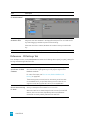
Using Video Preview overlays (safe areas, grid, closed captions, and color channel isolation)
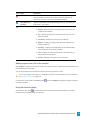
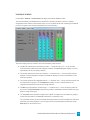
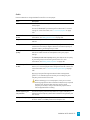
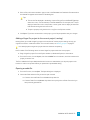
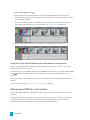
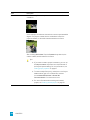
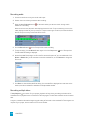
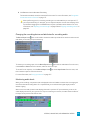
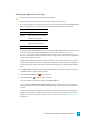
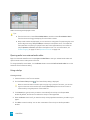
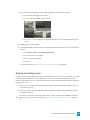
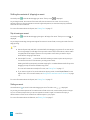
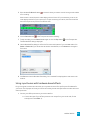
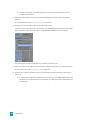
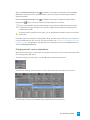
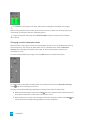
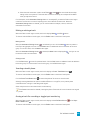
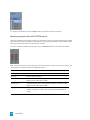
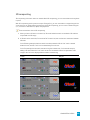
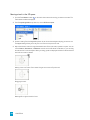
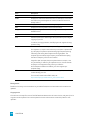
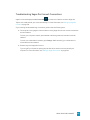
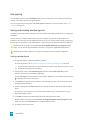
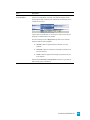
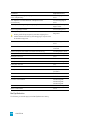
Click the down arrow next to the Overlays button
display of the Video Preview menu.
and choose a setting from the menu to configure the
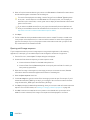
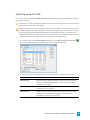
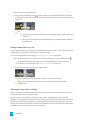
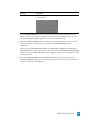
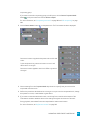
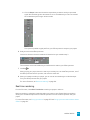
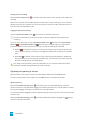
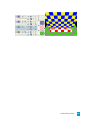
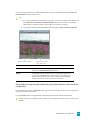
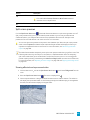
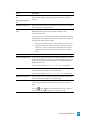
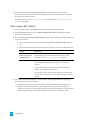
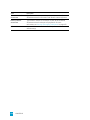
Click the Overlays button to toggle between a standard preview and the selected preview mode.
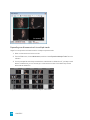
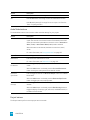
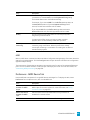
Overlay settings from the Video Preview window are also applied to the video monitor in the Trimmer
window.
PREVIEWING YOUR PROJECT 471