1
Pasting events in ripple editing mode
Once information is copied to the clipboard, you may choose a variety of ways to paste the clipboard items into tracks. For more
information, see Pasting events on page 57. The following procedures explain pasting information in ripple editing mode.
Note: Events are always pasted into their own tracks at the cursor position.
1. From the Options menu, choose Ripple Edits to enter ripple editing mode.
2. Move the cursor to the desired timeline location.
3. Place the cursor within the track where you want to paste the event.
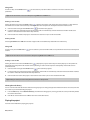
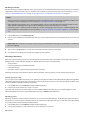
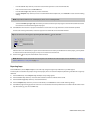
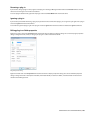
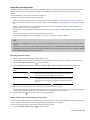
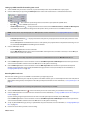
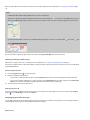
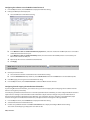
4. Click the Paste button (
) on the toolbar to paste the event into the track.
Clipboard information is pasted at the cursor’s position on the track. Existing events or portions of events after the cursor adjust to occur
later in the project. The amount of adjustment is based on the total length of the information being pasted.
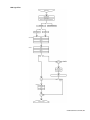
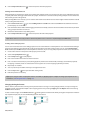
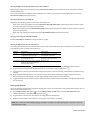
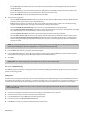
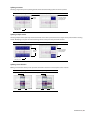
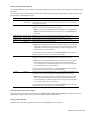
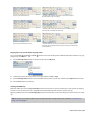
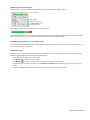
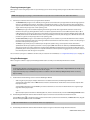
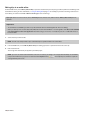
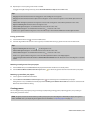
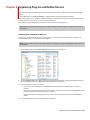
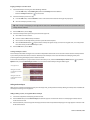
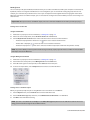
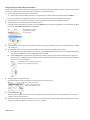
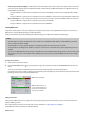
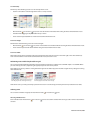
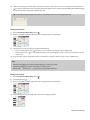
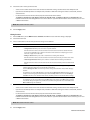
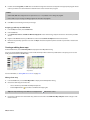
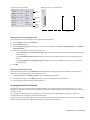
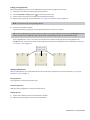
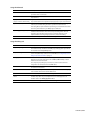
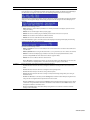
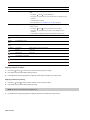
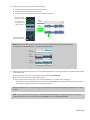
Pasting single track information in ripple editing mode
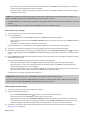
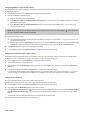
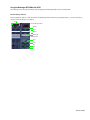
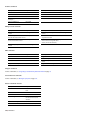
The information on the clipboard determines how many tracks are affected when you paste. If you have copied or cut information from
one track, only the selected track is affected by the pasted event and time information.
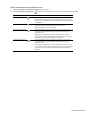
Clipboard contents
Events before paste
Events after paste
Existing event adjusts
to move later in the
project.
Paste
position
Newly pasted
event
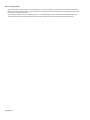
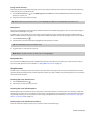
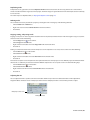
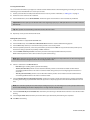
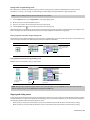
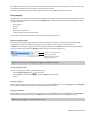
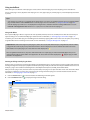
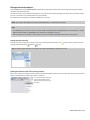
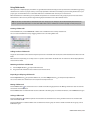
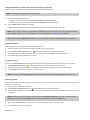
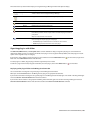
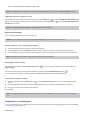
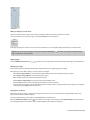
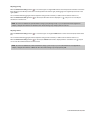
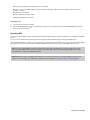
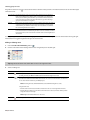
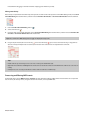
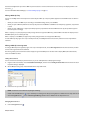
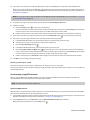
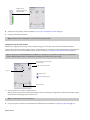
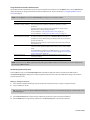
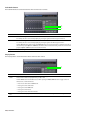
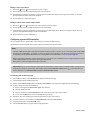
Pasting multitrack information in ripple editing mode
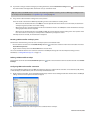
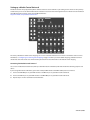
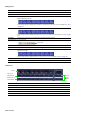
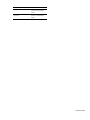
Multiple events can be pasted as easily as single events.
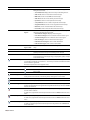
Clipboard contents
Events before paste
Events after paste
Newly pasted event
These events will
be pasted
Paste
position
Existing events on the tracks adjust later in
the project
Note: Pasting in ripple editing mode ripples only the events on the tracks that receive the clipboard contents. If you want to ripple all
tracks at the paste position, use the Paste Insert command from the Edit menu.
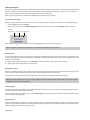
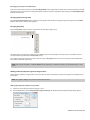
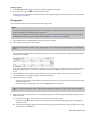
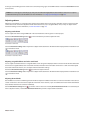
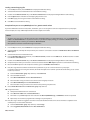
Slipping and sliding events
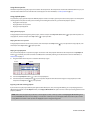
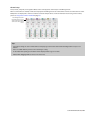
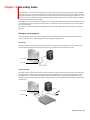
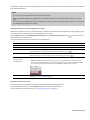
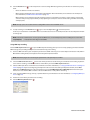
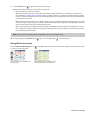
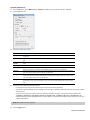
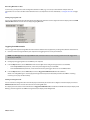
To help you picture what happens when you slip and slide events, think of an event as a window to a media file. The window can display
the entire media file or a small section. When the window displays only a portion of the media file, you can move either the window or
the underlying media to adjust the media played by an event:
•
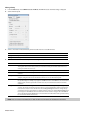
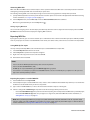
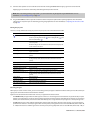
When you slip an event, your event maintains its place on the timeline, but the media file moves in the direction you drag.
•
When you slide an event, the media file maintains its place on the timeline, but the event moves in the direction you drag.
EDITING EVENTS | 65