1
Android Basics
Part 3 - Customising screens and settings
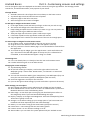
You can change the app icons displayed on the Home screens by using the app drawers. The Settings provide
controls for, and information about, many aspects of your device.
The apps drawer
1. Androids come with a lot of apps that are not always on the home screens
2. Tap the All Apps icon that looks like rows of squares
3. Swipe the pages to the left to see more
4. After the app icons are screens of widgets
To add apps or widgets to the Home screens
5. In the apps drawer, touch and hold your finger on the icon you wish to copy
6. The screen will change to the main Home screen
7. Keep holding and push the icon to where you want it to go. You can push it the
right or the left to go to different Home screen
8. Take your finger off to leave it in place. It will snap to a grid
9. It has been copied from the app drawer rather than moved
10. Large widgets won’t transfer to a Home screen if there is not enough space
To remove apps or widgets from the Home screens
11. On a Home screen, touch and hold on the icon you want to remove
12. Drag the icon to the ‘Remove’ label or a bin that appears at the top
13. This only removes it from the Home page. It is not uninstalled or removed from
the app drawer
14. To uninstall an app or widget, go to the apps drawer > touch and hold on the
app > this time an info label will appear at the top and, if it is allowed to be
uninstalled, an Uninstall label will appear > drag it to a label
The Settings icon
15. If it is not already there, it is handy to have this icon on the Home screen
16. It either looks like a gear or set of slide controls
Changing the screen wallpaper
17. Tap the Settings button
18. On the left column go to Display > and on the right column look in the
Wallpaper group > choose from ‘Home Screen’, ‘Lock Screen’ or ‘Home and
Lock Screen’
19. You can then chose from Gallery (your own photos), Live Wall Papers (they can
move, but use more battery power) or Wallpapers (that are static)
20. Scroll the suggestions and tap on one to choose
21. (You can also get to these settings, by touch and hold in a space on the screen)
Other Settings you can explore
22. Only change one thing at a time and keep track of what you have changed
23. Wi-Fi and Bluetooth > to turn them on or off. Turn off Bluetooth is you have no
Bluetooth devices to save a little battery power
24. Data Usage > to see which aps are using up your download quota. Often it is
the Google Play Store if you have been downloading new apps
25. Display > Display >to change screen Brightness. Also look at Sleep delay (about
10 minutes is good) or Font size
26. Storage > to see what is taking up your storage space. If you have an SD card
installed it will show separately from the Internal Storage
27. Battery > to see what is using up the most battery (always the screen!)
28. Power Saver > some settings that can save battery power
29. Location access > to turn location tracking on or off
30. About Tablet > you can check for system updates and your Android version
Mark Young for ASCCA 18.10.2013