1
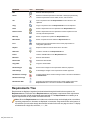
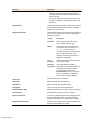
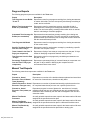
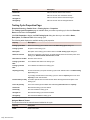
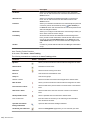
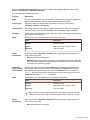
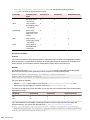
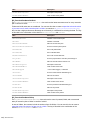
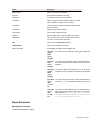
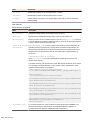
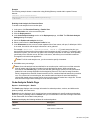
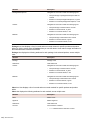
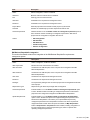
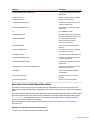
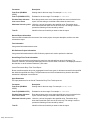
Item
Icon
Description
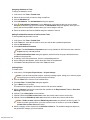
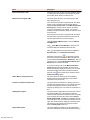
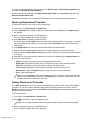
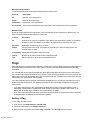
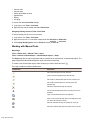
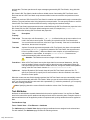
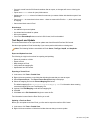
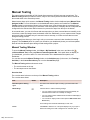
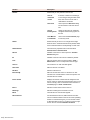
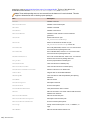
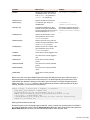
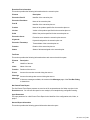
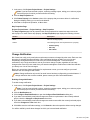
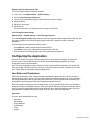
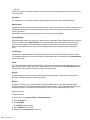
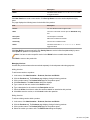
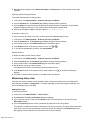
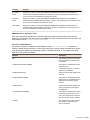
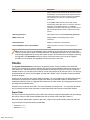
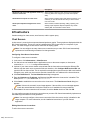
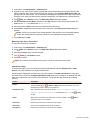
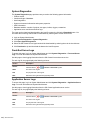
Move Up
Move reports up within the Reports tree.
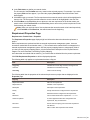
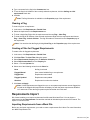
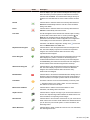
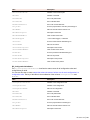
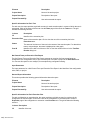
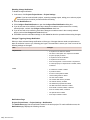
Move Down
Move reports down within the Reports tree.
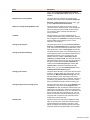
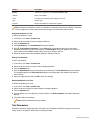
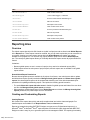
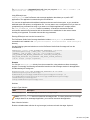
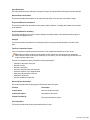
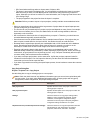
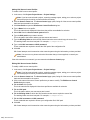
Last Used Reports
Lists the Most Recently Used (MRU) reports by date/time in
descending order. Select a report name from the list to advance to
that report. Each time a report is accessed by clicking the Data,
Chart, or Report tab, that report is added to the top of the list box.
Accessing a report's Properties or Parameters tab does not result in
that report being added to the Last Used Reports list box.
The Last Used Reports list box is empty for new users and users
who have not yet generated a report. The number of reports that
displays in this list can be configured by your administrator. For more
information, see the Administration topics in this Help.
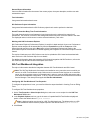
Report Properties
Editing Report Properties
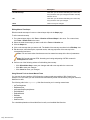
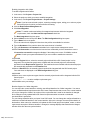
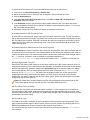
To edit the properties of a report:
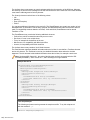
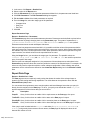
1. In the menu, click Reports > Details View.
2. Select a report in the Reports tree.
3. Click the Properties tab.
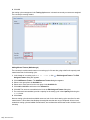
4. Click Edit. The Edit Report dialog box appears.
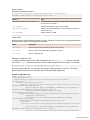
5. Modify the Name, the Description and the Timeout [s] of the report as required.
6. Check the Share this report with other users check box if you want to make this report available to
other users.
7. From the Default tab list, select the tab that you want to be directed to when you select this report from
one of the context-sensitive report lists.
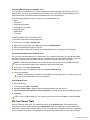
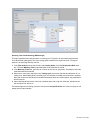
8. You can edit the report in two ways:
•
Create a simple report: Use the Selection criteria, Property, Operator, and Value lists to generate
SQL queries. Click More to add further query strings and choose the operators AND or OR to
combine the queries. Click
•
to delete a query string.
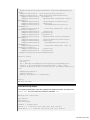
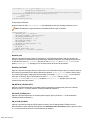
Create an advanced report: If you are familiar with SQL, you may want to edit the query code. Click
Advanced Query and modify the query code within the Report data query field. The Insert
placeholder list assists you in editing the SQL queries with pre-defined function placeholders. Click
Simple to go back to the simple mode.
Note: If you manually edit the SQL code for the query, upon finishing, click Check SQL to confirm
your work.
9. Click Finish to save your changes.
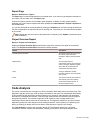
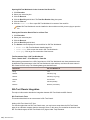
Report Properties Page
Reports > Details View > Properties
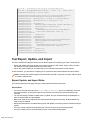
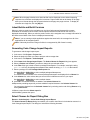
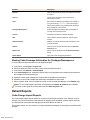
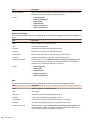
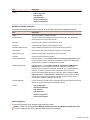
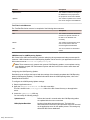
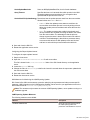
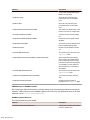
The Properties page displays the basic properties of the selected report, enabling you to edit these
properties or the report templates. You can also add subreports to your reports.
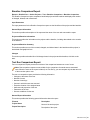
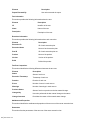
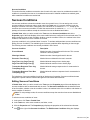
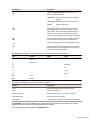
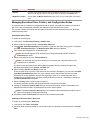
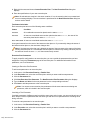
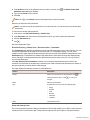
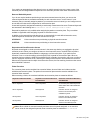
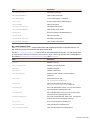
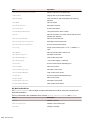
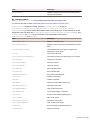
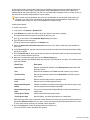
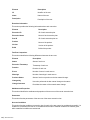
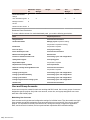
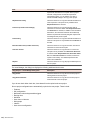
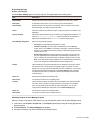
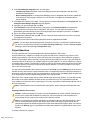
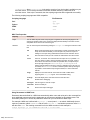
The page displays the following items:
320
| Silk Central 15.5