1
BOLIDE: User manual
BOLIDE Interface
Last update: 28 Sep 2007
___________________________________________________________________________________________________________
1. Main Window
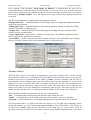
Main window manages the interface operation and has global menu and buttons which duplicate
actions from the Files menu. The bar title indicates the name of input file. The Files menu includes
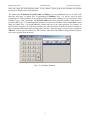
the following items (Fig.1.1):
Main window has the following buttons for working with interface:
– open the input file with using Windows Open dialog;
– save input file;
– calculator tool;
– periodic table of chemical elements;
– text editor (by default open betacool.war)
– setup dialog window of the interface program;
– dialog window for elaboration and editing of exterior;
– redraw all graphics;
- restart calculation with new parameters;
- start calculation process;
- pause calculation process;
- restart with changed parameters. If some changes of parameters (in input file via interface)
during calculation were made by user then program will reread initial file and will continue
calculation with new parameters;
- stop calculation. To stop the program with correct OS memory cleaning we advise to use this
item. In this case a special file-marker will be created in the current directory and as soon as
program will find it then it immediately will shutdown with correct saving all the calculated results.
Fig. 1.1. Main window of the BOLIDE interface for BETACOOL program.
1.1. Open
Opens a new input file using the standard MS Windows dialog. The default name and default
filename extension are defined in Options dialog. This filename can be used as input for physical
program when it will be executed from the BOLIDE interface.
1.2. Save
Saves the current input file. If in Options dialog the checkbox Auto Save Input File is chosen the
saving of input file is produced automatically when user load the new input file or exit the
bolide.exe. If user executes the external physical program the input file is always saved.
1.3. Save as…
2