1
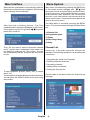
Play Options:
Play from start: Plays the recording from the
beginning.
Resume: Begins with playing from the last stopped
position.
Play from offset: Begins with playing, from the time
which is entered.
Manage chapters : It will display any marked chapters
(To set chapter marks, press the Menu button during
playback and enter the “Chapter Options” menu) and
begin with playback from the selected chapter.
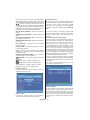
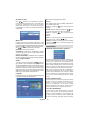
Create archive (Archive management): Using this
option, you will be able to archive your recordings to
an external device like a DVD player. Press the LIB.
Button and come to the “Recordings Library”. In this
library, the saved recordings are listed. To select a
recording which should be archieved, highlight one
of them using the “ ”/“ ” buttons and select the
TAG option, by pressing the yellow button. After then,
press the OK button to open the “Play Options” menu.
In this menu, using the “ ”/“ ” buttons, select the
“Create Archive” option and enter it by pressing the
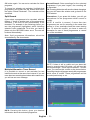
OK button. You will see the menu below:
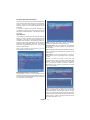
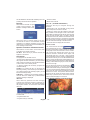
Edit Recordings
While the “Edit recordings” option is highlighted, using
the “ ”/“ ” buttons come to the list of recordings on
the right of this menu. Select one of them, which
should be archived and press the OK button. You will
come to the following menu:
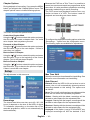
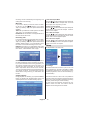
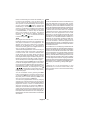
Here, only the “Start recording at” and “ Stop recording
at” options are active. If you have alrady separated
recording, you could select any chapter to begin
with the archiving and stop it. If it is not separated
in chapters, the beginning and ending time of the
recording will be automatically the beginning and
ending time of the archiving.
Main Title
If you want to display a main title, select “Include”
(To do this, use the “ ”/“ ” buttons). If not, select
“Skip”. By selecting “Skip”, the options below will be
disabled.
TEXT: After you select the “Include” option in the “Main
Title” menu, you could edit the main title.
DURATION: Set the duration of the appeareance of
the main title on the screen.
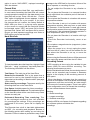
Recording Title
If you want to display a recording title, select “Include”
(To do this, use the “ ”/“ ” buttons). If not, select
“Skip”. By selecting “Skip”, the options below will be
disabled. While archiving, you could decide to show
the names of the saved recordings on the scren.
DISPLAY: In this option, you could decide, which of the
following items should be displayed in the recording
title: “Name”, “Start date/time” and “Length”.
DURATION: Set the duration of the appeareance of
the “Edit recording title” menu main title on the screen.
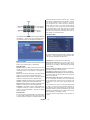
If you press the Menu button during playback, you
will enter the “Chapter options and in this menu, you
could set any point as a chapter. So, the user is be
able to skip frames which should not be archived.
The user could also start and stop the playback from
any chapter he wants. To stop archiving, press the
STOP button. During archiving, no other button will
function.
English - 13 -