1
User’s Manual
5.2.3 Backup
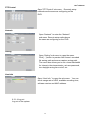
Use the File List sub-menu to find recorded video on your system and copy it to a USB flash
drive (not included).
NOTE: The system is compatible with most major brands of USB flash drives, with capacities
from 256 MB to 4 GB or may be higher.
To backup recorded data:
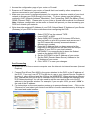
1. Connect an empty USB flash drive to the bottom USB port on the back panel of the
system.
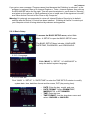
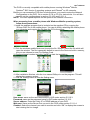
2. Open the Search menu and search for recorded data on the system.
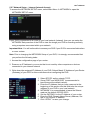
3. Click FILE LIST.
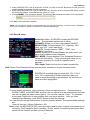
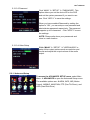
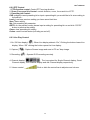
4. Select the files you want to backup and click the "SEL" box next to the file name, select
multiple files if desired. Click ALL to select all files; click “INV” to deselect all files.
NOTE: The size of each file is shown in the File List menu. Use this to help you find a USB
flash drive large enough to hold all the files you wish to backup.
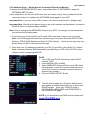
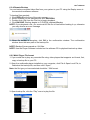
5. Click BACKUP from the side-panel to immediately begin copying the files to the USB flash
drive.
NOTE: Backup progress appears in the status window. DO NOT remove the USB flash drive
during backup.
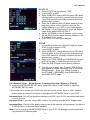
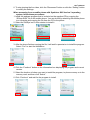
6. If backup is successful, click OK in the confirmation window and then remove the USB
flash drive.
NOTE: If there is not enough space on the USB flash drive, the system will display the
following: "Space is not enough."
5.2.4 Backup File Data
The system will create a folder on the USB flash drive named RecordFile. The files are saved as .264
files.
Note: Backup file will be in H.264 format, you can convert it to AVI format using the Multimedia
Player program that comes with the DVR or through the net-viewer program, so you can
use any player that supports AVI format.
5.2.5 Converting Files to AVI:
Use the built-in browser-based remote surveillance software to convert saved video files to AVI.
The AVI format allows you to playback the video files in many multimedia players. AVI conversion
involves two parts: selecting a file, then converting the file.
To select a file:
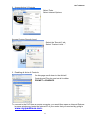
1. Open Internet Explorer. In the address bar, enter the IP address of your system.
2. Log in using your ADMIN password. If passwords are not enabled on your system, leave the
password field blank.
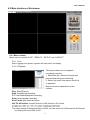
3. Click REPLAY at the top of the main screen.
4. Use the calendar to select a date and click REFRESH.
5. Find a desired file from the File List and double-click to playback the file in the main screen.
To convert the file:
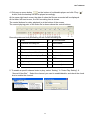
1. With a file selected and played back in the main screen, click 264 TO AVI. The AVI Convert window
will open.
18