1
User Manual
address.
5.2.3.4 Port Forwarding
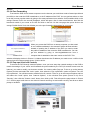
To access the DVR from a remote computer over the internet you would then need to forward port 80 and
port 9000 on the router the DVR is attached to, to the IP address of the DVR. You can get instructions on how
to do this for most popular routers by going to the www.portforward.com website. On this website click on the
orange “Routers” link in the second paragraph, which will open a list of router manufactures, then find the
brand and model of your router on the list and click on the link. On the next page that opens click on the
orange “Default Guide” link, this will take you to the port forwarding instructions for your router.
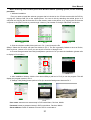
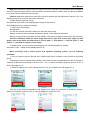
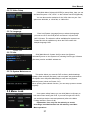
Picture 5-13
Picture 5-12
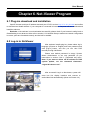
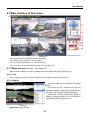
Picture 5-14
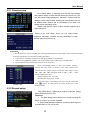
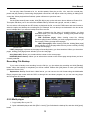
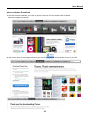
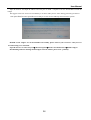
When you access the DVR from a remote computer you also need
to use a different address in the Internet Explorer browser window.
Instead of entering the IP address of the DVR you need to enter
the public IP address of the router the DVR is attached to. You can
get this address by going to www.myipaddress.com from a
computer that is attached to the same router as the DVR. This
website will display the box in Picture 5-14 below that shows the IP address you need to use. It will be in the
space where the below example shows 76.254.183.54.
5.2.3.5 Pop-ups & ActiveX Controls
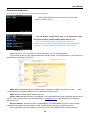
To access the DVR through Internet Explorer: once you have setup the network settings on the DVR to
match the settings of your router and forwarded the ports needed by the DVR (for remote access over the
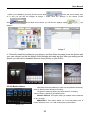
internet), you need to modify your browser controls. You need to allow Pop-ups. To do so go to the Internet
Explorer tool bar and select the "tools" option, then select the "Pop up Blocker" option and select "Turn Off
Pop-up Blocker”. You will also need to enable Active X controls. To do so go to the Internet Explorer tool bar
and select the "tools" option, then "Internet Options", In the windows that opens (Picture 5-16) Go to
"Security", then click the "Custom Level" button, then click on OK. This will open the page shown in Picture
5-17. On this page scroll down to the ActiveX Controls and Plug Ins and make sure they are all set to either
prompt or enabled.
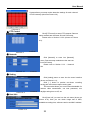
Picture 5-15
13