1
ACTS Client-Server Interface
Channel Settings
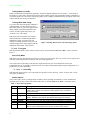
Several tools and dialogs of the EZ-Train console enable you to set the number of parameters for each of up to eight
color-tracking channels of ACTS.
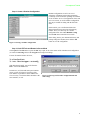
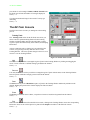
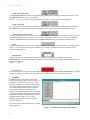
Select Current Channel
This radio-button section of the EZ-Train console is perhaps the most important since most other features of the
console refer to this setting to alter a channel’s data. Click one of the buttons 1 through 8 to set the currently active
channel exclusively.
When changed, ACTS automatically switches to the working parameters of the selected channel, including Number of
Blobs Tracked (next section), color information in the channel, and so on. These may or may not be the same as for
other channels, or even for the filename-stored version of the channel if you have altered the channel information in the
current session.
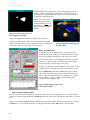
When you select a different channel, the raw image in the Training Window won’t change, but because the colortracking parameters may (probably) change, blobs indicated in the window’s overlay and thresh modes will change.
Number of Blobs Tracked
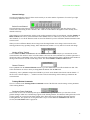
Use the Number of Blobs Tracked thumb-dial tool to set the number of colored objects you want to track in a the
current channel. Click the arrow to the left of the number to decrease the value (minimum one); click the right arrow to
increase the value to a maximum of ten. ACTS will report to the client information about a maximum of that number of
the largest blob it detects from the current image frame. The default Number of Blobs Tracked is three.
Channel Filename
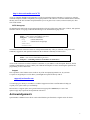
Enter a pathname into the Channel Filename textbox to give the channel data a saved-file destination on disk. This
will be the filename ACTS uses when you simply Save the channel from the File menu.
Alternatively, enter a pathname and press the ENTER key to load a saved channel’s data into the current channel—if
the file exists. Click the ellipsis (“…”) button to activate a file-selection dialog, which contents get loaded into the
current channel.
Training Window Commands
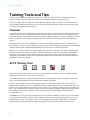
The set of controls in the Training Window Commands section of the EZ-Train console manage various parameters
of the Training Window.
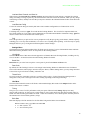
Continuous Frame Grab Mode
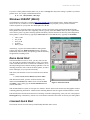
The licensed version of ACTS normally starts up in continuous frame-grab mode, unless you don’t have a frame
grabber running in which case a default image appears in the Training Window. In continuous frame-grab mode, ACTS
works as quickly as it can to have the frame grabber grab a frame, then process and display that image from the
Training Window. The quickest ACTS can grab frames is 30 per second. When the Continuous radio button is
selected, the Grab Frame button is grayed out.
17