1
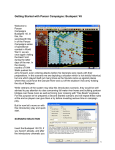
Next, the A/I Selection Dialog will appear. Since we are going
to play as the German forces you should select “Automatic
with FOW” in the Allied A/I on the left-hand side of the dialog.
This will cause the computer to play as the American Player.
If we want to give the computer an advantage we could move
the Advantage slider towards the Allied, but leave it in the
middle for now. This dialog screen can also be used to select
the Optional Rules by clicking the “Rules” button at the
bottom. Do so now to bring up the Optional Rules Dialog.
By default, several Optional Rules are
selected and you can experiment with
these later. However, we strongly
recommend that you use the
DEFAULT FIRE Rules – that is, not to
use the Alternative and Optional Fire
Rules as the results will be out of sync
with the Scenario victory results. Most
veteran players use Recon Spotting.
Once you check any box to select a
rule, that rule will remain in effect for
all games until you enter this dialog
again and unselect the rule. Also
note, the Explicit Supply rule is only of
use with certain scenarios. Click OK
to exit the Dialog when you are ready
and then OK on the A/I Selection Dialog.
The battlefield map will be drawn and the
Command Dialog will appear on the screen. This
dialog will appear at the beginning of each turn and
tell you important information that has happened.
As the game progresses, this Command Report
provides useful information. It is well worth your
time to look at it carefully at the start of each turn.
Click on the OK button to close this dialog so you
can examine the map and game interface. You can
change the map scale and play the game in any of
the four different Map Views by pressing the ZoomIn and Zoom-Out buttons: the “+” and “–“ buttons on the tool bar. You can also use the scroll
bars on the outside of the map to scroll the map view.
2