1
Microcoin
Micromate User Manual
Essential Information
Before you use the Micromate, a few essential concepts and comments. It is strongly recommended
that if you read nothing else, you at least read this page in conjunction with the Glossary and the
Micromate Menu Tree.
Introduction
The Micromate allows a user to check and modify the coin and programming settings in QL. It will
also enable the programming of new coins and tokens, and allow diagnostic tests to be done.
It is provided in a sturdy case to protect against everyday knocks and bumps.
Validator Power.
QL needs to be connected to a 12Vdc power source via its parallel port to work with the Micromate.
Micromate Power.
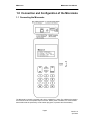
The Micromate is powered by an internal battery. It also has an input for an external 9Vdc power
source which should be used during extended programming sessions to preserve the battery.
Similarly, when working from the battery it is recommended that the Backlight be turned off and that
the Power Saving feature be turned on.
Initial Setup.
When you first use your Micromate, set up the operating modes using the DIAGNOSTICS;
MICROMATE menu (see section 1.3).
Menus and Navigation.
The menu structure of the Micromate is self explanatory and designed to prompt the user for the next
entry. Take time to read each screen.
A flashing field indicates that the Micromate is requesting data input. Key in the data and press Enter.
For multiple field entry screens, pressing ENTER will skip to the next field without changing the
existing value.
Navigating the menus is accomplished by pressing the appropriate number key for the option listed
or pressing ESC to return to the previous menu. Pressing ESC multiple times will step back through
the menu tree and eventually return you to the main menu.
Where there are arrows at the bottom of the screen, use the scroll (arrow) buttons to access
additional options and information.
The keypad responds best to slow deliberate presses on the individual keys. Listen for the
confirmation beep.
QL Configuration Data.
Configuration data is downloaded from QL into the Micromate where it is edited. Any changes made
to the configuration are not saved until the end of the editing session. Immediately prior to returning
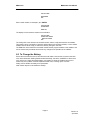
to the Main Menu, you will be asked “Save Changes to the Validator Y/N? Pressing NO at this point
will leave the existing QL Config unchanged. Pressing YES will save your changes by returning the
modified Config to QL
Coins and Tokens.
Throughout this manual, the term coin is used to cover both coins and tokens.
Micromate Display
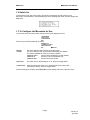
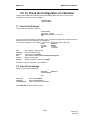
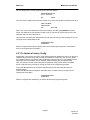
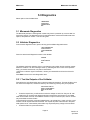
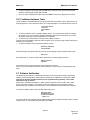
This manual shows Micromate screen text as “BOLD “Capitals.
Flashing text is shown as “NORMAL “Capitals.
Page 2
Version 1.0
April 2001