1
10
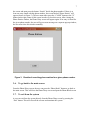
will get a confirmation message that the appointment is saved on a separate pop-up
window; the user must manually close this pop-up window in order to proceed further.
If the user does not save but presses the “Appointment Calendar” button, the appointment
will not be saved, the Appointment Entry screen will be closed the Appointment Calendar
screen will be opened up.
If the user presses the “Exit” button, all the windows will be closed, the entries will be
backed up and the program terminates.
4.2. To delete an appointment
A user must select the date and time of the appointment to be deleted from the combo
boxes on top of the Appointment Calendar screen and then must press the “Delete”
button. If there is an appointment at that date/time, the appointment will be deleted and
the user will get a confirmation message on a separate pop-up window. The user must
manually close this pop-up window and the Appointment Calendar will appear again. If
there is no appointment at the selected date/time, an error message will be displayed on a
separate pop-up window. The user must then manually close this window and get back to
the Appointment Calendar screen.
4.3. To modify an appointment
In order to modify an existing appointment, the user must first select the date and time of
the appointment from the combo boxes on the top of the Appointment Calendar screen. If
the appointment is not found, an error message will be displayed on a separate pop-up
window. The user must then manually close this window and get back to the
Appointment Calendar screen in order to select another date and time combination.
If there is an appointment at the selected date/time, the Appointment Calendar screen will
be closed and the Appointment Entry screen will be opened. On this screen, the date,
time, description of the appointment and the last name (if entered) will appear on their
respective fields. The user may modify the appointment or the last name. The date and
time fields are not editable and hence the user cannot change the date or time of the
appointment. The user can get back to the phone diary by pressing the “Phone Diary”
button beside the last name field. This will open up the Phone Diary screen and display
the entry corresponding to the last name. If there is no entry corresponding to this last
name, an error message will be displayed on a separate pop-up window. The user must
then manually close this window and get back to the Appointment Entry screen.
4.4.
To search an appointment
To search an appointment, a user must follow the same procedure as to modify an
appointment except that the user must press the “Search” button instead of the “Modify”
button. In fact, the user can modify the appointment that is returned as the result of
searching. See section 4.3 for the procedure to search and to modify an appointment.