1
DYL MANUAL |
allows the IVR to be directly routed/transferred
to via an internal extension in your phone
system. The 3 digit extension will begin with “4”
and just enter two more digits to assign to the
IVR.
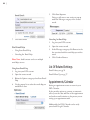
a.
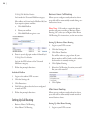
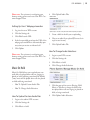
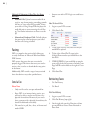
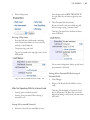
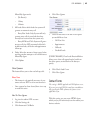
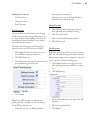
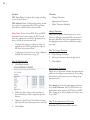
Forwarding Number: Type in the 10 digit
forwarding phone number
b.
Play Message: Select an audio message
from the pop-up list if you would like an audio
message to play before calls are forwarded
c.
Change Caller ID: By default when a call
is forwarded, the inbound caller’s caller ID will
be displayed. If you would instead like a different number to be displayed, enter a 10-digit
phone number.
d.
Ring For: Select: 20, 30, 40, 50, 60, 90, or
120 seconds to control how long forwarded
calls ring for
e.
If Nobody Answers: Select what should
happen to the call if nobody answers the call
6. Click Update
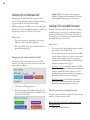
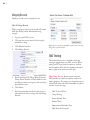
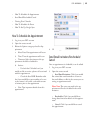
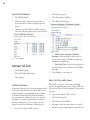
Forwarding Numbers
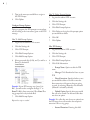
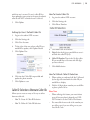
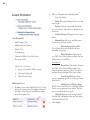
Setting Up A Forwarding Number/ Forwarding
Number Settings
Please Note: We highly recommend editing this because, by default, calls are set to Hangup if Nobody
Answers.
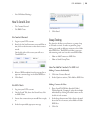
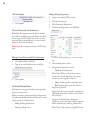
5. Click Add Forwarding Number
1. Login to your DYL account
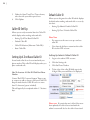
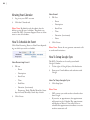
Voice Mailboxes
2. Click the Settings tab
•
Company Mailboxes
3. Click Phone Numbers
•
Individual Mailboxes
4. Click Add Forwarding Number
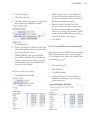
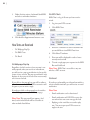
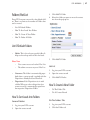
Company Mailbox
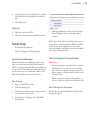
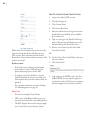
1. Log into the admin’s DYL account
2. Click the Settings tab
3. Click Extensions
4. Dial 501 on a phone that has been configured
to work on DYL
5. Enter the Mailbox Number, followed by #. This
will most likely be 300, unless you have set up
multiple Company Mailboxes.
9