1
H2-E.fm 25 ページ 2007年7月11日 水曜日 午後3時19分
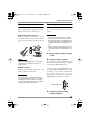
Stereo Mode Recording
Playback
This section explains how to play back a file
recorded in stereo mode.
In stereo mode, each recording operation will
result in one stereo file (WAV or MP3
format). These files are stored in the currently
selected folder (01 – 10) on the inserted SD
card. To select a recorded stereo file for
playback, proceed as follows.
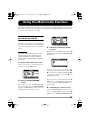
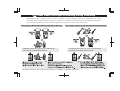
1.
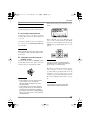
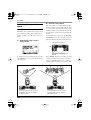
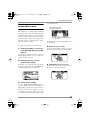
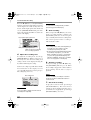
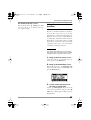
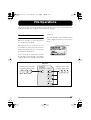
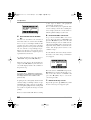
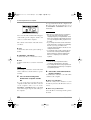
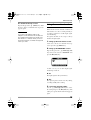
Bring up the stereo mode top
screen on the display.
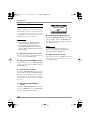
This screen is the main menu which gives
access to various setting menus.
At the main menu screen, use the 3 (REW)/
2 (FF) keys to move the cursor (R symbol)
to the desired item and press the 5 (REC)
key to open the setting screen for that item. By
pressing the 4 (MENU) key once more, you
can return to the top screen.
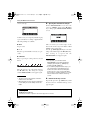
In this example, use the 3 (REW)/2 (FF)
keys repeatedly to move the cursor to
"FOLDER" and then press the 5 (REC) key
to bring up the folder selection screen.
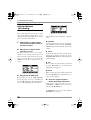
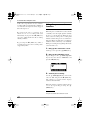
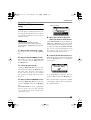
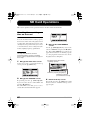
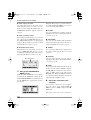
The file whose name is shown in the center of
the display is the one that will be played back.
Only files located in the currently selected
folder can be selected for playback.
Number of currently selected folder
Name of currently selected file
2.
Select the folder which contains
the file to play.
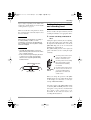
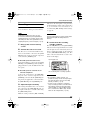
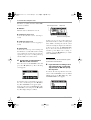
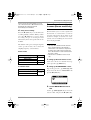
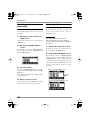
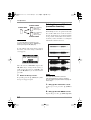
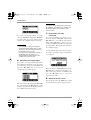
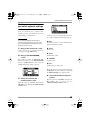
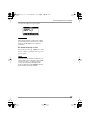
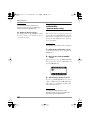
To select a folder, press the 4 (MENU) key
to bring up the following screen.
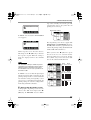
Next, use the 3 (REW)/ 2 (FF) keys to
move the cursor to the desired folder and press
the 5 (REC) key to confirm the selection.
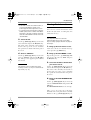
After selecting the folder, press the 4
(MENU) key repeatedly to return to the stereo
mode top screen.
HINT
If the folder that holds the file you want to play
is already selected, the above procedure is not
necessary.
3.
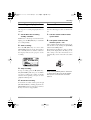
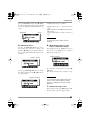
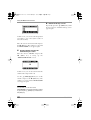
Select the file to play.
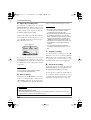
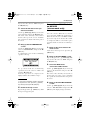
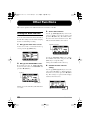
Briefly tap the 2 (FF) key to skip to the next
file in the currently selected folder. To skip
back by one file, press the 3 (REW) key
once to return the counter to zero, and then tap
the key again.
ZOOM H2
25