1
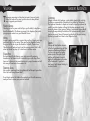
GETTING STARTED
GETTING STARTED
GETTINGS
STARTED
GETTING
TARTED
GETTING STARTED
®
®
PLAYSTATION
3 system
front
PLAYSTATION
3 SYSTEM
FRONT
®
TM
Using the
SIXAXIS™
controller
(for PLAYSTATION
3)
USING
THEwireless
SIXAXIS
WIRELESS
CONTROLLER
(FOR PLAYSTATION®3)
Port indicators
Slot cover
CF* slot
L2 button
L1 button
SD*2 Memory
SD*2 Memory
Card slotCard slot
Directional
buttons
Memory
MemoryStick™ slot
Stick™ slot
SD/miniSD
L2 button
L1 button
1
Eject button
Eject button
CF
USB connector
•The L3 and R3 buttons function
when sticks are pressed.
R2 button
R1 button
Note: ToR1
use
the controller, you
button
must first register or “pair” the
controller with the
®
3 system and
PLAYSTATION
button
assign a number to the controller.
button
For details, refer to the
button
instructions
supplied with the
system.
button
R2 button
button
button
button
button
Directional
buttons
SD/miniSD
*1 CompactFlash®
*2 Secure Digital
*1 CompactFlash®
*2 Secure Digital
Insert the disc with the
label side facing up.
Insert the disc with the
label side facing up.
Left stick/
L3 button*
SELECT button
Disc slot
Power button
Vent
Disc
slot
Eject button
Power
button
WLAN access indicator
Vent
HDD access indicator
USB connectors
Eject button
WLAN access indicator
®
Note: Some models of the PLAYSTATION 3 system do not include media slots. For specific
HDD
access
indicator
features included, refer
to the
instructions
for use of your model of the PLAYSTATION®3 system.
Starting a game: USB
Before
use, carefully read the instructions supplied with the PLAYSTATION®3
connectors
system. The documentation
contains
information
on setting
up and
Note: Some computer
models entertainment
of the PLAYSTATION
3 system do
not include
media
slots.
For
®
® safety information.
using your
as welltoasthe
important
specific
features
included,
refer
instructions
for not
useinclude
of your
model
of the
Note:
Some
models
ofsystem
the PLAYSTATION
3 system do
media
slots.
For specific
PLAYSTATION 3 system.
®
®
Checkrefer
that the
POWER switchfor
(located
onyour
the system
rear)
turned
on. Insert the (title
features included,
to MAIN
the instructions
use of
model
of isthe
PLAYSTATION
3 system.
Starting a game:
Before
carefully
thedisc
instructions
supplied
with
the title under
name) disc
with use,
the label
facing upread
into the
slot. Select the
icon for the
software
PLAYSTATION®3 computer
entertainment
The documentation
contains
®
®
Before
use,
carefully
readsystem.
the instructions
the PLAYSTATION
3
[Game] in the
PLAYSTATION
3 system’s
home
menu, and thensupplied
press thewith
S button.
Refer to this
information on setting up and using you system as well as important safety
manual for information
using
the software. contains information on setting up and
computer
entertainment
system. on
The
documentation
information.
using
yourthat
system
as well
as important
safety
information.
Quitting
a POWER
game:
During
gameplay,
press
down the
PS is
button
on theon.
wireless
Check
the
MAIN
switch
(located
onand
thehold
system
rear)
turned
Insert the
Viking: Battle controller
for Asgardfor
disc
with
the label
facing
thefrom
disc
Select
icon for the
at least
2 seconds.
Then
select up
“Quitinto
Game”
theslot.
screen
that isthe
displayed.
®
Check
that the
on the system
rear) home
is turned
on. Insert
the (title
3 system’s
menu,
and then
press
titleMAIN
underPOWER
{Game}switch
in the(located
PLAYSTATION
software
To remove a disc, touch the eject button after quitting the game.
Hint
the Sdisc
button.
Refer
to this
manual
on using
thefor
software.
name)
with the
label
facing
up intofor
theinformation
disc slot. Select
the icon
the software title under
Starting a game:
Quitting
game: During ®gameplay,
hold
PSthe
button
on theRefer
wireless
[Game]
in thea PLAYSTATION
3 system’spress
homeand
menu,
anddown
then the
press
S button.
to this
controller for at least 2 seconds. Then select “Quit Game” from the screen that is
manual
for
information
on
using
the
software.
displayed.
Hint: To a
remove
a disc,
touch
the ejectpress
button
Quitting
game:
During
gameplay,
andafter
holdquitting
down thethe
PSgame.
button on the wireless
controller for at least 2 seconds. Then select 4
“Quit Game” from the screen that is displayed.
Hint
USB connector
Port indicators
Slot cover
CF*1 slot
CF
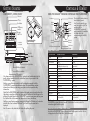
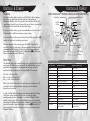
CONTROLS & COMBAT
Using the SIXAXIS™ wireless controller (for PLAYSTATION®3)
PLAYSTATION®3 system front
To remove a disc, touch the eject button after quitting the game.
Right stick/
R3 button*
Left stick/
L3 button*
START button
PS button
START button
PS
RAGE MODE button
Viking™ Game Controls
SELECT
button
* The L3 and R3 buttons function
when the
sticks are pressed.
BUTTON TO USE:
Right stick/
R3 button*
UNSHIFTED STATE
Left stick
Player
Player movement
Note: To
use
the
controller,
you must
firstmovement
register
or “pair”
* The
L3 and
R3 buttons
function
when the
sticksthe
arecontroller
pressed.with the
Right®3stick
control
Camera
PLAYSTATION
system and assign aCamera
number
to the controller. For details, refer to
the control
Not Used
instructionsDirectional
suppliedbuttons
with the system.Not Used
S
FOCUSED Power attack
Fast RAGE moves (Press and hold for
Note:
To use the controller,
you must
first register
or “pair”
the
controller with the
(F& STogether,
when powered
up)
biggest
available)
®
PLAYSTATION
3 system
andActivity
assign a number to the controller.
A
Focused
Not UsedFor details, refer to the
®
Saved instructions
data
for PLAYSTATION
3attack
format
software
F
Slow the
(Press and hold for super strength)
Slow RAGE moves (Press and hold for biggest available)
supplied with
system.
Saved data for PLAYSTATION®3 format software is saved on the system’s hard disk.
D
Jump
Not Used
The data is displayed under “Saved Game Utility” in the Game menu.
Q
Rage mode
Rage mode
E
Inventory selection
Inventory selection
®
W
Block
Block
W &data
D for PLAYSTATION
Dodge ®3 format software is saved Dodge
Saved
on the system’s hard disk.
R
Power selection
Power selection
The
data is displayed under
“Saved Game Utility” in the Game
menu.
B
Not Used
Not Used
N
Centers the Camera
Centers the Camera
START button
Options
Options
SELECT button
Open Map/ Inventory/ Messages (Standard play)
Open Map/ Inventory/ Messages (Standard play)
or Freya Cam (Battle)
or Freya Cam (Battle)
Saved data for PLAYSTATION 3 format software
Note: To use the controller, you must first register or “pair” the controller with the
PLAYSTATION®3 system and assign a number to the controller. For details, refer to the
instructions supplied with the system.
Saved data for PLAYSTATION®3 format software
Saved data for PLAYSTATION®3 format software is saved on the system’s hard disk. The data
is displayed under “Saved Game Utility” in the Game menu.
5