1
Case CATalyst Installation and Configuration Guide
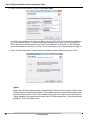
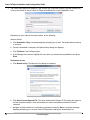
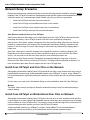
3. Insert the Case CATalyst DVD into the DVD drive. When the AutoPlay dialog box displays, click Run
autorun.exe.
If your computer settings do not allow for “auto run” or “auto play,” or the Case CATalyst Installation
screen does not display, you can initiate the installation process manually:
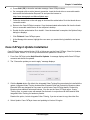
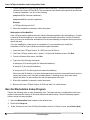
a. From the Windows Start menu, select Run.
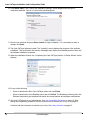
To add the Run command to the Windows 7 or Windows Vista Start menu, right click the Start
menu and select Properties. Click the Start Menu tab and select Customize. Depending on
your operating system, check the box, Run command or Display Run command and press OK.
Click OK in the Taskbar and Start Menu Properties dialog box.
b. On the Command line, type d:\setup and then press Enter. If your DVD drive is designated by a
letter other than “d,” substitute the appropriate letter in the command line.
c. Continue with Step 5 on page 10.
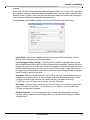
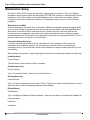
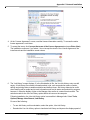
4. The Case CATalyst Installation screen displays with the following options. To continue with the Case
CATalyst software installation, click Install Case CATalyst.
•
Install Case CATalyst - Begin the Case CATalyst Version 16 software installation.
•
Installation and Configuration Guide - Display the step-by-step installation instruction in PDF
format.
•
Browse for Drivers, Release Notes and more - View the contents of the Case CATalyst V16
Installation DVD.
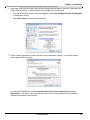
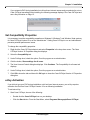
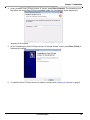
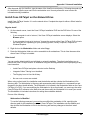
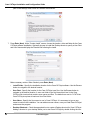
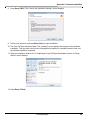
5. When active, the User Account Control (UAC), a security feature in Windows 8, Windows 7 and
Windows Vista, prompts you for permission to allow the Case CATalyst installation. Select Yes or
Continue.
The current Windows user must have Administrator rights. If the current Windows user does not
have Administrator rights, the UAC prompts you to enter the Administrator user name and password.
10
© 2015 Stenograph