1
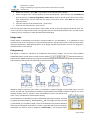
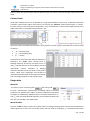
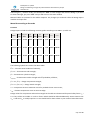
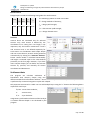
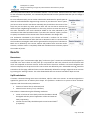
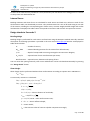
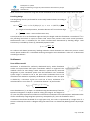
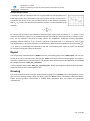
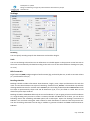
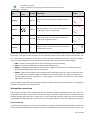
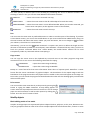
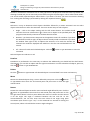
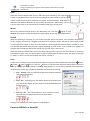
Pad Expert v 2.7/2014 Design and detailing of single RC pad foundations with arbitrary shapes User Manual Scale Scales the selected objects with a center and scale factor defined by user. Click the button or type SCALE. Then enter first and second point and press Enter or click the right mouse button. The first point represents the center of transformation. Scale factor is defined as the distance between the first and the second point. Alternatively, you can type the scale factor in the command line instead of entering a second point. Mirror Mirrors the selected objects about a line defined by user. Click the button or type MIRROR. Then enter first and second point and press Enter or click the right mouse button. Stretch When the drawing is unlocked, you can stretch separate objects like points, lines, polylines, dimensions, circles, polygons and texts by “dragging” with the mouse. Select the object and click on a point (end, middle or center point) to “catch” it. Then move the cursor to a new location and second click to “release” it. Texts are selected and moved using their base points displayed as small circles. If you stretch a line, polyline or polygon and you hold shift before the second click you will insert a new vertex. When the drawing is locked then you work in block editing mode. You can move entire blocks by stretching the respective grips. First, you have to select a grip by clicking with the mouse. Then, click again on the grip to “catch” it, move it to the new location and click to “release” it. Copy Creates one or multiple copies of the selected objects using one of the available transformations ( move, rotate, scale or mirror). Click the button or type the COPY command. Select objects and press Enter or click the right mouse button. A settings dialog appears on screen. Select method of transformation using the icons on the top, number of repetitions and method of pointing: First – second – click two points that define the distance between two consecutive objects; First – last – click two points that define the distance between the first and the last object. All other objects will be distributed evenly between them; One - by - one – click a base point first. Then you have to enter separate points to define the location of each object independently. Coping is not available for some objects in some modules. Export to ZWCAD+ or AutoCAD стр. 21 от 28