1
TempelPlus User Manual
Version 1.2.0
8.3 Signature verification
The TempelPlus software allows the user to verify signature validity of a whole folder of
signed files. The folder can contain both DigiDoc containers and ordinary data files.
Open the command line and navigate to the TempelPlus home directory (replace with the
suitable directory if necessary):
cd "c:\Program Files\TempelPlus"
The signature verification command generally looks like this:
tempelplus verify <file or folder to be verified>
Example: verification of the signatures in the signed containers in one folder (for instance:
C:\digidoc_files\):
tempelplus verify c:\digidoc_files\
Additional parameters:
•
-cn <cn> - optional parameter, determines the “Subject CN” value. If set, then it is
verified if the particular institution/individual is the signer of the document.
Example: tempelplus verify c:\digidoc_files\ -cn „MÄNNIK,MARI-LIIS,47101010033“
The software will display the file number currently being processed in real time, it will also
display information about the found signature – signer, date, validity – and if the process
ends successfully, the user will see a notification similar to this:
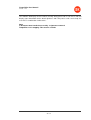
Done
7 documents verified successfully
TempelPlus found 14 valid (or matching) signatures and 0 invalid (or not matching)
signatures
TempelPlus v1.2.0 stopping. Time used: 2 seconds
21 / 31