1
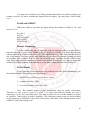
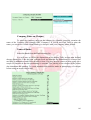
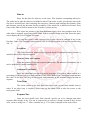
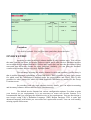
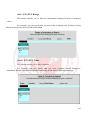
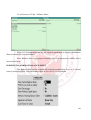
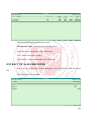
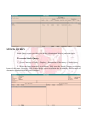
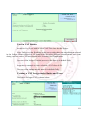
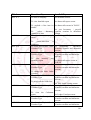
This field prints the VAT amount on the total Net Value. That is, Rate of VAT,
Assessable Value and VAT Amount is printed at the bottom right of the screen.
VAT Amount (In words)
Prints the VAT amount in words
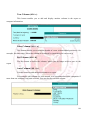
Company’s TIN/LST No.
Prints the Company’s TIN or LST number.
Company’s CST No.
Prints the CST number entered in the Company master.
Buyer’s TIN/Sales Tax No.
Prints the buyer’s TIN or Sales Tax number, as the case may be
Date & Time
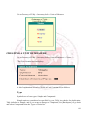
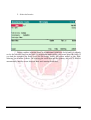
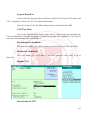
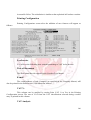
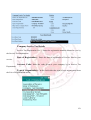
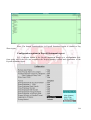
The field Print Date & Time in the Printing Configuration screen needs to be set to
Yes in order to print the date. However, in case Excise details are enabled the Date & Time is
printed regardless of the setting in the Printing Configuration screen.
Declaration
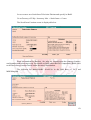
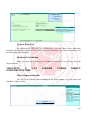
The declaration entered in the Sales Voucher type Master will be printer. If it is
not entered in the Sales Voucher type, Tally will print the following line by default:
“We declare that this invoice shows the actual price of the goods described and
that all particulars are true and correct”.
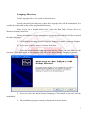
If you do not require this, you can set Print declaration to No in the Printing
Configuration screen shown above.
Generated by
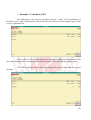
By default the Generated by field will display This is a Computer Generated
Invoice. However, you can change it if required. This is printed at the bottom of the Invoice.
Copies of the Invoice
261