1
Image Editing
9. The right mouse button can be used at any stage to reset to the previous state, as
described in the status bar.
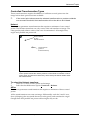
Arc Centre/Start/End
Draws an arc using the first point picked as the radial centre point, then start and
end of the arc.
For the arc by Centre/Start/End, arcs are always drawn from the start point clockwise
to the end point.
To draw an arc by Centre/Start/End:
1. Select the checkable menu option: Tools - Arc Centre/Start/End. The cursor
changes to a cross over a solid square with the square representing the size of the
defined line width.
2. Click the left mouse button on the point to be the centre point of the arc. Make
sure left button is released. A dynamic circle stretches from the centre point to the
current cursor position.
3. Move cursor to select a starting point of the arc.
4. Click the left button to fix the starting point in place. A dynamic arc, centred on
the first selected point, now extends clockwise from the previously selected
starting point to a point on the line extending radially from the centre to the
current cursor position.
5. Move the cursor to place the end of the arc in the required position.
6. Click the left mouse button to fix the arc in place.
7. Click the right button twice to free the cursor of the dynamic arc.
8. The right mouse button can be used at any stage to reset to the previous state, as
described in the status bar.
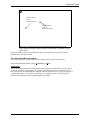
Arc Start/Centre/End
Draws an arc with the first point as the start of the arc, the second as the radial
centre point and the third as the end of the arc.
For the arc by Start/Centre/End, arcs are always drawn from the start point clockwise
to the end point.
To draw an arc by Start/Centre/End:
1. Select the checkable menu option: Tools - Arc Start/Centre/End. The cursor
changes to a cross over a solid square with the square representing the size of the
defined line width.
2. Click the left mouse button on the point to be the starting point of the arc. Make
sure left button is released. A dynamic circle stretches from the starting point to
the current cursor position.
3. Move cursor to place the centre point of the circle in the required position.
4. Click the left button to fix the centre point in place. A dynamic arc, starting on the
first selected point and centred on the second point, now extends clockwise to a
point on the line extending radially from the centre point to the current cursor
position.
5. Move the cursor to place the end of the arc in the required position.
6. Click the left mouse button to fix the arc in place.
7. Click the right button twice to free the cursor of the dynamic arc.
8. The right mouse button can be used at any stage to reset to the previous state, as
described in the status bar.
January 2009
Deskan v7.1
4-9