1
228
Chapter 10 – Intensity Analyses
Delete
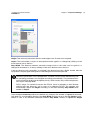
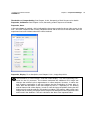
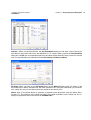
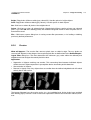
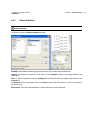
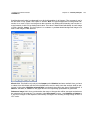
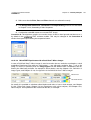
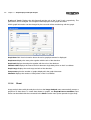
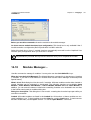
Delete. This removes the ROI highlighted in the "Active ROI" list
10.4.3
ROI Measurements (2-D)
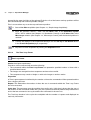
If the ROIs are already drawn when any of the measurement commands is called you
have to select the ROIs to be measured by mouse click. If no ROIs drawn the start of
any of the commands will automatically open the Define ROIs dialog described in the
previous chapter.
10.4.3.1
Area
Measure
ROI
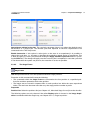
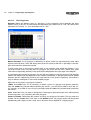
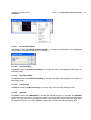
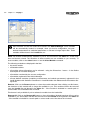
Area. Use this command to measure the area of a Region of Interest. The line
that defines the border of a ROI is counted as part of it. The results are listed in a sheet that is generated. The area unit depends on the image calibration; see Chapter 7.1, Image Calibration.
10.4.3.2
Perimeter
Measure
ROI
Perimeter. The area unit depends on the image calibration; see Chapter 7.1,
Image Calibration.
10.4.3.3
Average Intensity
Measure
ROI
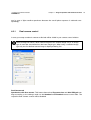
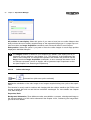
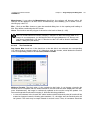
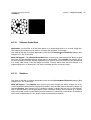
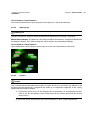
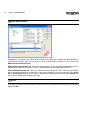
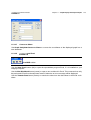
Average Intensity. Use this command to determine the average intensity of all
pixels within a Region of Interest (including the pixels that define the border of it). Pixels with 0
intensity are ignored because they result from thresholding (background subtraction) processes
and would skew the result in a meaningless way. This avoids having to be extremely careful when
drawing a ROI close to the border of a cell, for example in a ratio image. The measurement results
are listed in a sheet that is generated.
10.4.3.4
Average Value
Measure
ROI
Average Value. This is the same function as Average Intensity with the exception that, for example, in ratio images the actual ratio value will be given instead of the scaled display intensity which depends on the Scaling Factor used in the ratio calculation; see Chapter
10.8.2, Generating a Ratio Sequence.