1
User Manual
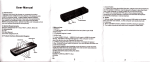
2.1.2 Remote Control lntroduction
'
2.1.4 Switch in the applications
Slandby/Wake up
2. Mute
3. Media
4. APPS
5. Music
6. Web
7. Volume 8. Volume +
9. Prsvious
10. Next
1 1. Home
12, Return
13, Arrw k€ys
14. OK
15. Menu
16. Mouse
17..Numbers (0-9)
S.bharaclers Switching Key
19. Delete
.1
2.1.8 WlFl Function
1.Home Screen * SETTINGS -
2.1.6 Back To Home Screen
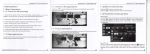
Click iconE=-to view recently us6d programs, click program lcon
to switch application arbitrarily
1.
User Manual
User Manual
User Manual
Cllck lcon
to r€turn to home screen
Cllck lcon@on remote controlto return to home screen
Network
t
Select"Wi-Fi"to
open WlFlfunction
2.Chooss Hotspot
2.1.7 Read External Storage Data
*
lnput Password+ Connect to the ngtwork
Read U Oisk
lnsort U dlsk or removablo hard disk into USB port in the status of
pow6r on, lcon +?. spp631s in top left corner of the desktop, open
"FlleBrowser', th6 ldentlfled USB(A:) will appear under 'Local
0lsk',
U
dlsk's opor€tlon ls available now.
(:----6---6]
@
E
2.1 .5 Close Applications
Click iconE=-*to viow recgntly used programs, chooee one of thsm
by click and hold, drag it to blank area to closs the appllcatlon
2.1.3 Open applications
Use remote control's arrow keys to choose target program, click
OK button to open lhe selected program
2.1 .9 Ethernet Function
Rsad TF card
lnsort TF card into th6 device in the staius of power on, when
lcon I appears in top laft corner of the desktop, open
1.Homo Scrssn*SETTINGS-Network* Select "Ethern6t" to
open Ethernet function
2.lnsert network cable, network will be connected automatically
'FlloBrowser", the identitied "External Storage Card" will
eppaar undsr "Local Disk', TF card's operation is available now
"This function only operated in the condition of Mouss mod6
4)
5)
6)
7)