1
How to Send Your Mail through Cryptobin
1. User Login
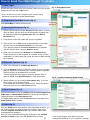
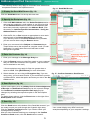
fig. 4 : Send Mail Screen
Access the login screen from your browser, enter your user ID and
password then click the Login button.
* If you do not know or have forgotten your user ID and/or
password, contact your system administrator.
2. Display the Send Mail Screen (fig. 4)
3. Specify
Recipient
Click Send Mail on the top left menu bar.
3. Specify the Recipient (fig. 4)
1. Select a group name from the Group pull-down menu. A list of
users to whom you can send a mail through the Cryptobin will
be displayed under the Cryptobin user tab in the Select
Recipient area.
2. From the list on the left, select the users to Cryptobin.
3. Click the To, Cc, or Bcc button as appropriate to move each
4.
selected user to the Users Selected box on the right.
Contents
If you add any users to the Users Selected box by mistake,
you can remove them using the Remove button.
4. Enter your comments in the Subject and Comment boxes.
These will be sent to the recipient as a regular e-mail (“E-mail
Notification”) to notify them that a mail was sent to them through
the Cryptobin.
5. Send
Options
4. Enter the Contents (fig. 4)
1. Enter your message in the Message Body box.
2. Click the Browse button to select files saved on your computer
that you would like to attach to your mail through the Cryptobin.
(Up to five files can be attached to one mail.)
* Some restrictions may apply for files size greater than or
equal to 20MB. Click [Restrictions] for more information.
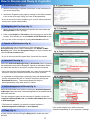
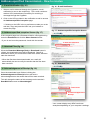
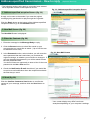
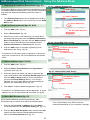
fig. 5 : Confirm Content to Send Screen
3. Select whether you are using an Encryption Key. If you are
using a key, you must enter it twice.
If you would like to provide a password hint, select that option
and enter your hint in the Set a hint text box.
5. Send Options (fig. 4)
Various send options such as Validity Period, Acknowledgement
of Receipt and Notification E-mail may be set by selecting the
respective option in the Send Option area.
To display these options, click the Show button to the right of the
Send Option section header.
6. Send (fig. 5)
Click the Send button at the bottom of the Send Mail screen if you
are ready to send your mail through the Cryptobin right away.
Click the Confirm and Send button if you need to check your
message before sending it.
After you have finished checking your message in the Confirm
Content to Send screen, click the Send button to send it.
2
* Your screen display may differ from these
examples depending on your computer's settings.