1
Connecting to Networks and Devices
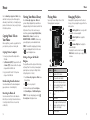
4.If the network is secured, enter the password and
tap Connect.
NOTE: Your phone automatically connects to
Connecting to Networks and Devices
Forgetting a Wi-Fi Network
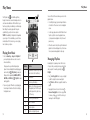
3.Tap > WPS Pin Entry.
You can make your phone forget the details of a Wi-Fi
network that you added—for example, if you don’t
want the phone to connect to it automatically or if it is
a network that you no longer use.
4.The WPS PIN displays on the screen. Enter the PIN
into the access point’s setup page.
Connecting to Bluetooth
Devices
WPS feature of access point, please refer to its
documentation.
Bluetooth is a short-range wireless communication
technology. Phones or other devices with Bluetooth
capabilities can exchange information wirelessly within
a distance of about 32 feet (10 meters). The Bluetooth
devices must be paired before the communication is
performed.
3. Tap the Wi-Fi network name and then tap Forget.
Adjusting Advanced Wi-Fi Settings
Turning Bluetooth On/Off
4.Check Network notification.
Connecting to a WPS Network
When Wi-Fi is on, you receive notifications in the Status
Bar when your phone detects an open Wi-Fi network.
Uncheck the option to turn off notifications.
Wi-Fi Protected Setup (WPS) is a feature that makes
it easy to add your phone to the access points which
supply WPS.
1.Press the Home Key > Apps icon > Settings >
Wi-Fi.
1.Press the Home Key > Apps icon > Settings >
Bluetooth.
2.Tap > Advanced to adjust the following settings.
2.Slide the Bluetooth switch to the ON
OFF
position.
Adding a Wi-Fi Network
You can use one of the following methods to connect
your phone to a wireless network using WPS.
previously used Wi-Fi networks when they are in range.
Getting Notified of Open Networks
1.Press the Home Key > Apps icon > Settings >
Wi-Fi.
2. Slide the Wi-Fi switch to the ON
position.
3.Tap > Advanced.
You can add a Wi-Fi network if the network does not
broadcast its name (SSID) or add a Wi-Fi network when
you are out of range.
To connect to a secured network, you first need to get
the security details from the network’s administrator.
1.Press the Home Key > Apps icon > Settings >
Wi-Fi.
2. Slide the Wi-Fi switch to the ON
3.Tap
position.
.
4.Enter the network SSID (name). If necessary, enter
security or other network configuration details.
5.Tap Save.
22
1.Press the Home Key > Apps icon > Settings >
Wi-Fi.
2. Slide the Wi-Fi switch to the ON
position.
Method one: WPS button (Recommended)
1.Press the Home Key > Apps icon > Settings >
Wi-Fi.
2.Slide the Wi-Fi switch to the ON
3.Tap
position.
.
4.Press the WPS button on the wireless router and the
access point will recognize your phone and add it to
the network.
After entering the PIN, your phone automatically finds
the access point and configures the connection.
NOTE: For detailed information about the
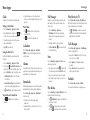
•Network notification: Get notifications in the
Status Bar when Wi-Fi is on and an open network
is available.
When Bluetooth is on, the
Status Bar.
•Keep Wi-Fi on during sleep: Choose whether
or not to keep Wi-Fi on in Sleep mode.
Changing the Device Name
•Scanning always available: Let Google’s
location service and other apps scan for
networks, even when Wi-Fi is off.
•Avoid no internet connections: Only use
a Wi-Fi network when the Internet connection
is good.
Method two: PIN
• Install certificates: Check the installed
certificates.
1.Press the Home Key > Apps icon > Settings >
Wi-Fi.
•Wi-Fi optimization: Check to minimize battery
usage when Wi-Fi is on.
2.Slide the Wi-Fi switch to the ON
•MAC address: Check the MAC address.
position.
•IP address: Check the phone’s IP address.
or
icon will appear in the
1.Press the Home Key > Apps icon > Settings >
Bluetooth.
2.Slide the Bluetooth switch to the ON
position if Bluetooth is off.
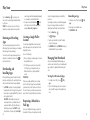
3.Tap > Rename phone.
4. Edit the name and tap Rename.
Pairing With Another Bluetooth
Device
1.Press the Home Key > Apps icon > Settings >
Bluetooth.
23