1
Administrator
structures. Your system configuration determines
what type of data it is possible to add to any particular cell.
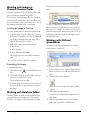
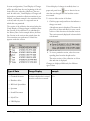
There are three ways to add information to a cell:
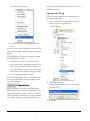
• Choose a value from the dropdown menu that
appears in the cell. You will use this option
when the cell has a list of possible values associated with it.
• Enter a value using the keyboard.
• Draw a Chemical Structure -- See “Working
with Structures and Images in Tables” on page
568 for more information.
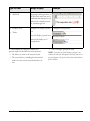
In some cases, your system administrator may have
configured E-Notebook such that a particular
property in the table has one or more qualities, such
as ‘Read Only’. See “Setting and Editing Values in a
Property List” on page 557 for details on qualities.
Certain numerical properties in a table may have
units associated with them.
Working with Structures and Images in
Tables
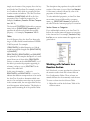
Tables may contain chemical structure fields,
which you can use to manage data about the structures of compounds that interest you. You can also
add standard image files to the chemical structure
fields.
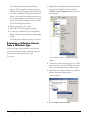
To add a structure or image to a table:
568•Working with Data in E-NotebookCambridgeSoft
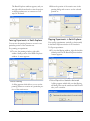
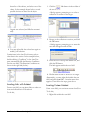
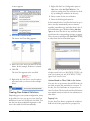
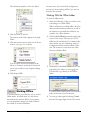
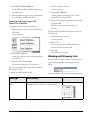
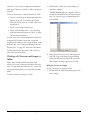
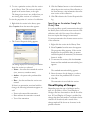
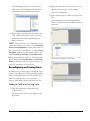
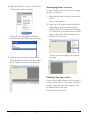
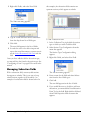
1. Double-click a table cell corresponding to a
structure or image.
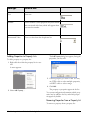
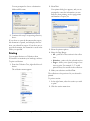
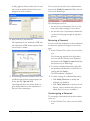
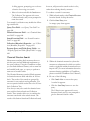
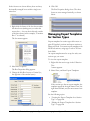
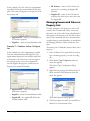
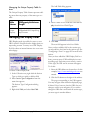
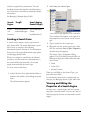
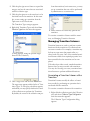
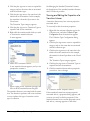
The Edit Structure dialog box appears, and you
can use the ChemDraw tools to draw the structure. Or, you may copy a standard image file
into the field.
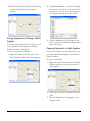
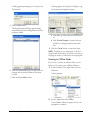
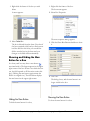
2. Draw the structure or paste in the image and
click OK. Copy in an image by right-clicking
within the field and selecting Edit, then Paste.
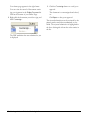
The structure or image appears in the table.
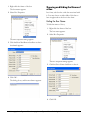
Editing a Structure or Image
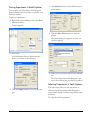
To edit a structure or image in a table:
1. Double-click the table cell containing the structure or image.