1
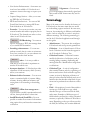
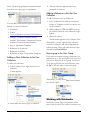
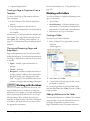
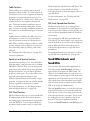
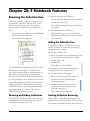
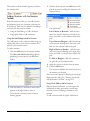
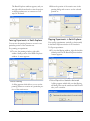
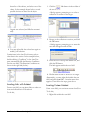
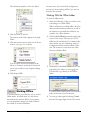
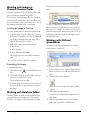
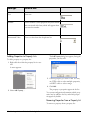
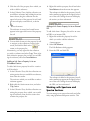
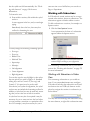
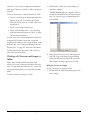
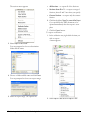
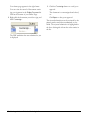
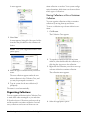
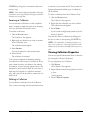
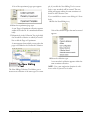
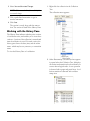
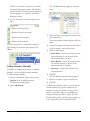
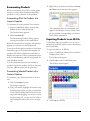
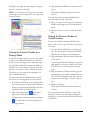
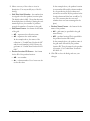
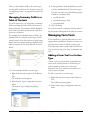
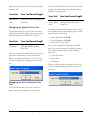
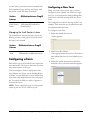
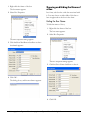
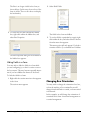
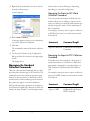
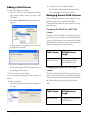
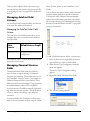
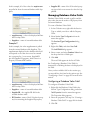
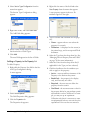
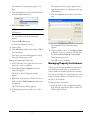
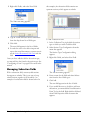
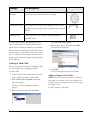
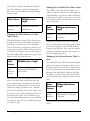
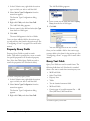
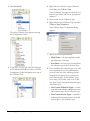
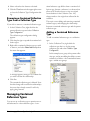
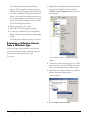
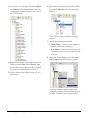
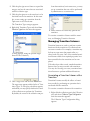
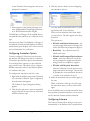
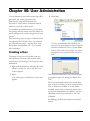
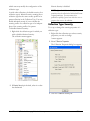
3. Right-click one of the columns in the Table of
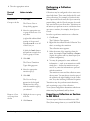
A menu appears.
Contents.
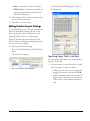
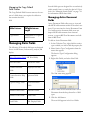
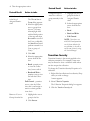
A menu appears.
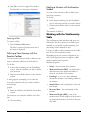
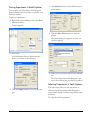
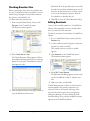
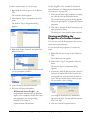
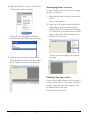
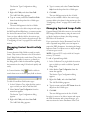
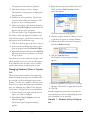
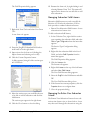
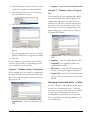
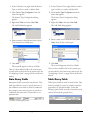
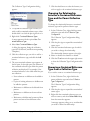
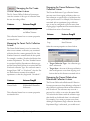
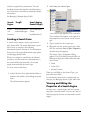
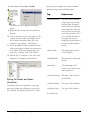
8. Select Sort Ascending.
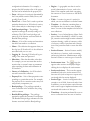
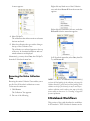
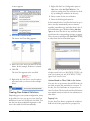
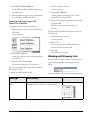
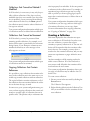
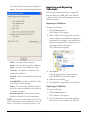
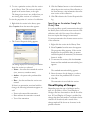
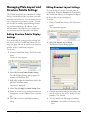
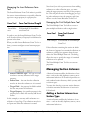
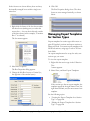
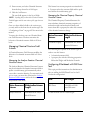
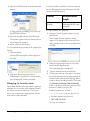
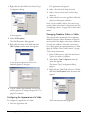
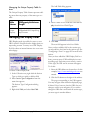
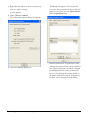
4. Select Show Columns.
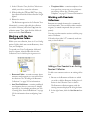
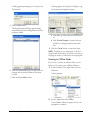
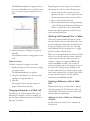
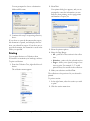
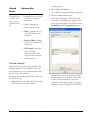
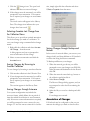
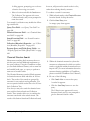
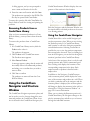
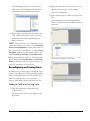
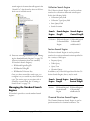
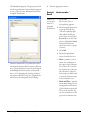
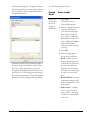
The Show Columns dialog appears, listing the columns you may select for display in the TOC. The
columns that are currently displayed are denoted
with checkmarks.
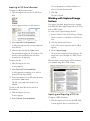
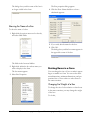
The items are sorted in ascending order according
to the column you selected.
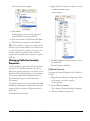
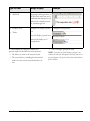
To sort items in an descending order:
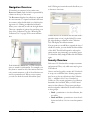
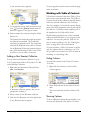
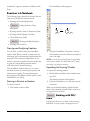
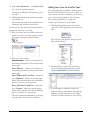
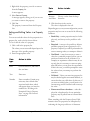
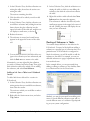
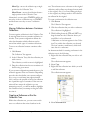
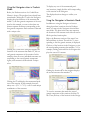
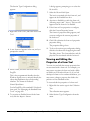
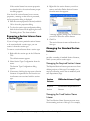
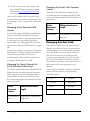
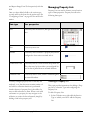
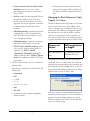
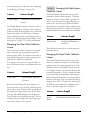
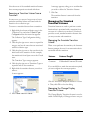
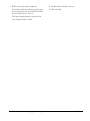
9. Right-click the column by which you wish to
sort the Table of Contents.
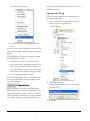
A menu appears.
10. Select Sort Descending.
The items are sorted in descending order by the
column you selected.
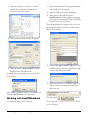
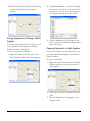
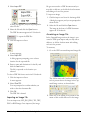
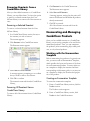
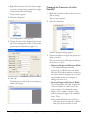
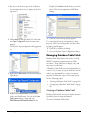
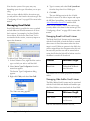
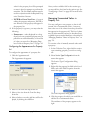
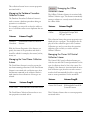
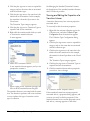
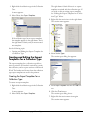
5. Select and deselect columns to customize the
TOC display.
The columns you selected appear with checkmarks
next to them.
6. Click OK to close the dialog.
The dialog closes, and the screen refreshes to display the additional columns.
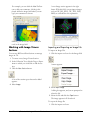
Sorting Items in the TOC
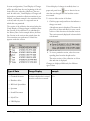
You may sort items in the TOC in either an
ascending or descending order. To sort items in an
ascending order:
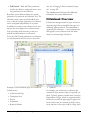
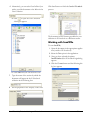
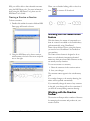
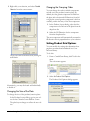
7. Right-click the column by which you wish to
sort the Table of Contents.
ChemOffice 2006/E-NotebookWorking with E-Notebook
Working with Templates
E-Notebook gives you the ability to use templates
so that you can avoid reentering information
unnecessarily. For example, you may create a template for a particular type of Experiment or Page. It
may contain data and notes that you often use, or
typical values for various properties.
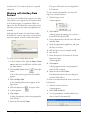
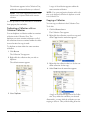
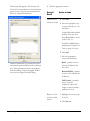
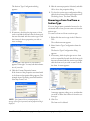
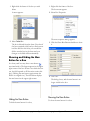
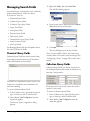
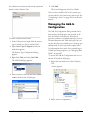
To create a new template:
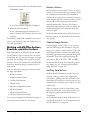
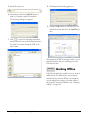
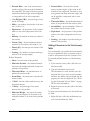
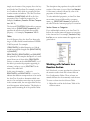
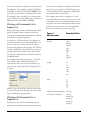
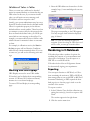
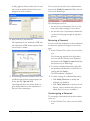
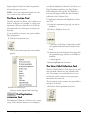
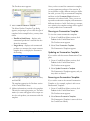
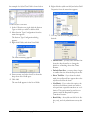
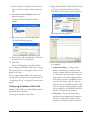
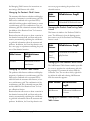
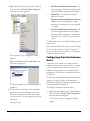
1. Within your User Configuration Folder, there
should be a My Template folder. Right click
this folder and select New, then the type of
template you wish to create.
The template appears within the folder.
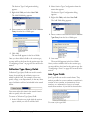
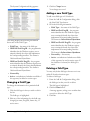
2. Add any data you wish to the template.
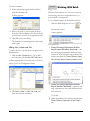
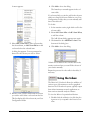
In order to use the template as the basis for a new
experiment:
• 517