1
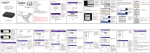
HDD Docking Station for 2.5”/3.5” SATA HDD with eSATA Connector User Manual Removing the drive from USB connection To remove the hard drive from the docking station, use the “safely remove hardware” tool in the System Tray in the lower right hand side of the screen to unmount the drive. Select the drive to stop and click on the stop button. Turn the Docking Station OFF and allow a minute or so for the hard drive to spin down before removing it from the station. Take hold of the drive with one hand and slowly rotate the HDD Ejector lever clockwise until the drive is free of the contacts. Removing the drive from eSATA connection While eSATA allows you to hot plug a drive when connecting it, there is no simple way of disconnecting the drive once connected. It is recommended that the computer be turned off before removing the drive from the Docking station. The Drive can be stopped through the Device Manager applet in the following manner. Open the Device Manager window and expand the “Disk Dives” group to display all attached hard drives. Locate the drive attached with the docking station and right click on the drive. Select “Uninstall” from the options menu and then click on the OK button in the confirmation box. The device manage will refresh and show that the drive is no longer connected. You should always ensure that no programs are accessing the driver before it is removed in this method. Do not remove the drive from the Docking Station if the Hard Drive activity light is red. Disconnecting a hard drive during the read/write process may cause corruption of data or damage the drive Page 3 of 7