1
Developer's Kit DIMM-520 User's Manual
4.5. First Start of Remote Features (video / floppy / keyboard)
The remote kit in the Insyde Software BIOS allows redirection of floppy,
keyboard and video via parallel or serial port to the host PC, thus omitting an
extra monitor, keyboard and floppy for the EVADIMM-520 Evaluation Board.
Only text mode is supported. The connection program on host PC
“REMHOST.EXE” is controlled by the file “REMHOST.INI”. For details see
Insyde Software BIOS User’s Manual.
Copy the directory REMHOST from the Developer’s Kit DIMM-520 CD to the
hard disk of your local PC. Go into DOS mode and change to \REMHOST.
Connect the parallel port of your host PC with LapLink Cable to the parallel port
of the EVADIMM-520 Evaluation Board (X4). Now start on your Host the
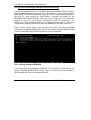
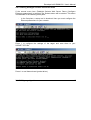
connection by executing REMHOST.EXE. You will see the start message of the
REMHOST program. After power up of the EVADIMM-520 Evaluation Board the
BIOS message will appear on the Monitor of the host PC. Enter the BIOS setup
and verify that the selected boot device is “Hard Disk”. Save and exit the BIOS
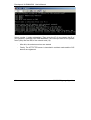
setup. The target will start with Datalight ROM-DOS. Type “dir” enter to see the
directory hard disk C: of the EVADIMM-520 Evaluation Board.
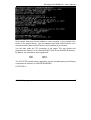
Now insert a floppy into the drive of the host PC and type “dir a:” enter. You will
see the directory of this floppy.
CAVEAT: Don’t try to RESET the EVADIMM-520 Evaluation Board with CTRLALT-DEL from the host keyboard. You will RESET your host PC!
End the REMHOST program with CTRL-Shift. Toggle power of the EVADIMM520 Evaluation Board to restart.
4.6. First Start of Phar Lap PEG Demo
The Phar Lap PEG demo demonstrates usage of the remote kit included in the
BIOS, which uses a virtual floppy on the host via parallel port on the EVADIMM520 Evaluation Board. The PEG demo itself demonstrates the GUI and tools
from the Phar Lap real time OS.
DIM520DK_um_v11_a4.doc
19