1
Read the Safety Precautions
Installing the Software
Before using the ScanSnap, make sure to read and
understand the information provided in the "Safety
Precautions" document.
Windows® Installation (J page 2)
Mac OS Installation (J page 4)
ATTENTION
Do not connect the ScanSnap to your computer
before installing the software.
Symbols Used in This Manual
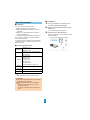
The following symbols are used in this manual.
Symbol
CAUTION
HINT
When you export the data scanned by ScanSnap to
your mobile device, download ScanSnap Connect
Application for mobile from an application store (such
as the App Store).
Description
This indication alerts operators to an
operation that, if not strictly observed, may
result in safety hazards to personnel or
damage to the product.
Windows® Installation
This symbol indicates operations using
Windows®.
This symbol indicates operations using
Mac OS.
■ Software
You can install the following software.
z ScanSnap Manager (Scanner driver)
Referring to the "Operator's
Guide"
z ScanSnap Organizer (File management
application)
z CardMinder (Business card management
application)
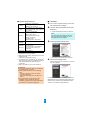
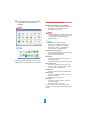
To refer to the "Operator’s Guide", insert the Setup DVDROM in to the DVD-ROM drive, and follow the procedure
below.
z ABBYY FineReader for ScanSnap™ (OCR
application)
To use Evernote for Windows, SugarSync Manager
for Windows, Dropbox for Windows, or Scan to
Microsoft SharePoint, the required software should
also be installed.
For details about each software and its installation
procedures, refer to "Installing the Software" in the
Operator's Guide.
Click the [Manuals] button in the [ScanSnap Setup]
dialog box, and then the [Operator's Guide] button.
Double-click the [Operator's Guide] icon in the
[ScanSnap] window.
2