1
Saving and Sync
Synchronizing with Server
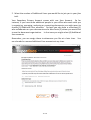
Go to the File Menu, select Synchronizing Data With Server. This option allows
your work to be saved and shared on the server with other users. Use this option
when it is necessary for others to view photographs/documents/videos, or when you
have completed working on a project and would like others to view your
photographs/documents/videos.
Saving Project
Go to the File Menu, select Save Project. This saves project data to your local drive.
File Menu/Synchronize Data With Server also saves data, but saves to the ‘cloud’
(or secure online server) so updated information can be shared. The updates and
changes you have made to your project are automatically saved.
Backing Up
Your documents and projects are backed-up automatically when you sync with the
secure Experdocs server. In addition, data is also saved to your local drive or
computer. Although Experdocs protects your documents and projects be sure to
back up the information stored on your personal computer regularly.
62 / 64