1
Connecting
to FirstClass ®
FirstClass® is an easy-to-use communication system for Windows. With FirstClass you can
send and receive electronic mail, share files, use electronic conferencing to exchange ideas,
and participate in on-line chats. Because FirstClass uses the familiar Windows graphical
user interface, you will find it fast, intuitive, and easy to learn.
FirstClass consists of two parts: the client (you) and a server. To use FirstClass, you will
need both a Settings Document for the system that you want to connect to and the FirstClass Client application. You will also need to connect to the server using either a modem
or a network. Before you can actually use FirstClass, you will need to log in, or connect, to
the server.
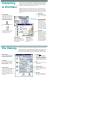
Splash Screen
Starting FirstClass
This contains information about
the system that you are connect ing to.
To start FirstClass, open the settings document for the system you want to connect to
by double-clicking on the icon. You can
also click once on its icon to select it, and
then choose Open from the File menu. A
typical settings document looks like this:
User ID and Password
You must have a User ID and
password to connect to a First Class system. Contact your
Administrator for details. On
some systems you can also auto
register and set up your own User
ID. If you get tired of entering
your User ID every time you log
on, you can save it in the settings
file by pressing the Setup button.
The FirstClass client application looks like
this:
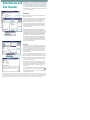
Starting FirstClass displays the Login Form
for the system you’ve chosen. A typical
Login Form is seen on the right.
Setup Button
Progress Display
Login button
As the connection is established, the
progress is displayed in this area. If you
have any problems logging in, contact
your Administrator.
To begin the login process,
enter your User ID and your
password, and click on the
Login button.
The Desktop
Window Summary
Press this button to change your
settings. These settings include
information on how to connect to
the server and can include your
User ID and Password. Once
you’ve established the correct set tings you need, there should be
no need to change them again. If
you need help with these settings
contact your Administrator.
Once you have connected to the server, your FirstClass desktop appears on the screen. In the example below, the desktop has been customized with a background graphic. This is the starting point
for using FirstClass. To open any item on the desktop, double-click on the appropriate icon. To
close the desktop, either exit the FirstClass application or choose Disconnect from the Service menu.
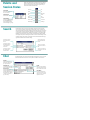
Unread Flag
Your Mailbox
An unread flag ( ) appears beside your
mailbox or a conference if there are any
items that you have not read. Note: You can
turn the flag off by holding the Control key
and clicking on the flag. This removes the
flag from every message in the conference.
Your mailbox contains all of the mail that
you have received and sent. To open your
mailbox (or any other item in FirstClass)
double-click on the icon.
News is a special conference used for general announcements.
The window summary displays the name
and type of the window as well as the
number of files and folders in the window.
News
Conferences Folder
Conference Aliases
You can create aliases of conferences you
are interested in by selecting the original
and choosing Make Alias from the Confer ence menu. This puts a copy of the conference icon on your desktop for easy access.
It also displays an unread flag when there
are unread items.
The conferences folder contains all of the
public access conferences set up by your
Administrator.
Help Folder
The help folder contains helpful instruc tions for using your FirstClass system.